



 ChatGPT
 Claude
 Grok
 Gemini
 Perplexity
If you sell gift cards in WooCommerce, you can now decide where the WooCommerce gift card sender name comes from. GiftRocketWP 1.1.5 (free, November 2, 2026) adds a setting with four choices: the buyer types it, it is taken from the billing name, your store sets one name for every card, or there is no sender name at all. If buyers should also pick the delivery date, read how to schedule gift card delivery in WooCommerce.
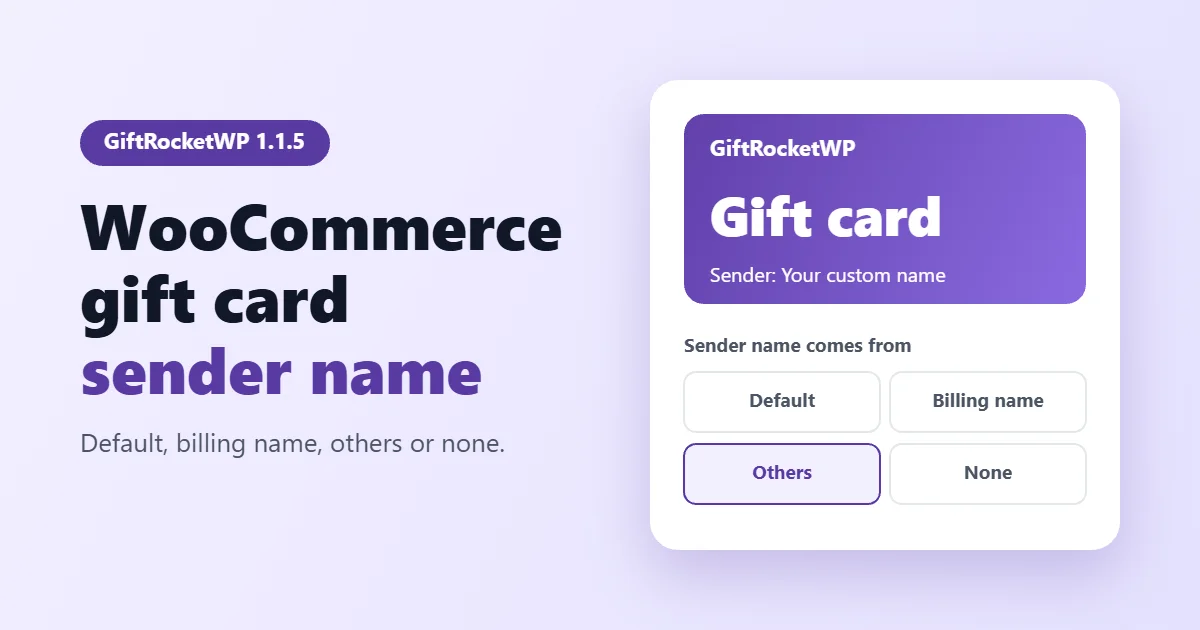
Short answer: to hide the sender name field on the product form, set “Gift card sender name field options” to Billing name, Others (with a custom name entered) or None. The field is then hidden on the product form.
This post shows how to change the setting, what each choice does, and which one fits which store. The full 1.1.5 changelog is on the WordPress.org plugin page. Developers get two new filters, and GiftRocketWP Pro 1.0.8 is listed as compatible with the setting.
In this post
- Choose the WooCommerce gift card sender name source
- How to change the gift card sender name
- Which sender name option fits your store
- For developers: two sender name filters
- Updating to 1.1.5
- How we tested the setting
- FAQ
Choose the WooCommerce gift card sender name source
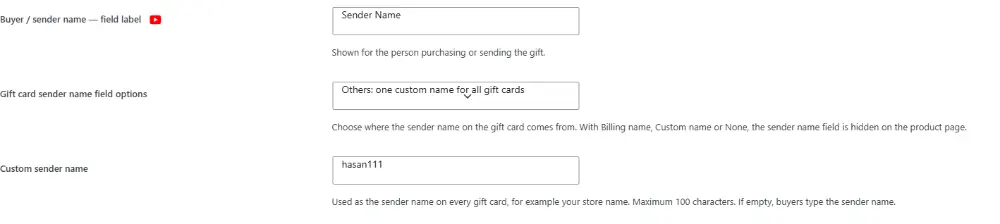
The setting is called “Gift card sender name field options”. In wp-admin, open GiftRocketWP > Gift Cards, then Settings > Gift Card Form. It is a dropdown with four choices.
| Choice | Where the sender name comes from | Sender field on the product form |
|---|---|---|
| Default: buyer types the sender name | The buyer types it. This works as it did before 1.1.5. | Shown |
| Billing name (billing first name + last name) | The plugin uses the first and last name from the order’s billing details when they are not empty. | Hidden |
| Others: one custom name for all gift cards | One name that you set once. Every gift card gets it. | Hidden |
| None: no sender name on the gift card | No sender name. The card is saved without one. | Hidden |
The choice labelled “Others” is called custom in the code. With it selected, a “Custom sender name” box sits under the dropdown for the name (maximum 100 characters). Test each choice on a staging order before you go live.
If you choose “Others” but leave the custom name empty, the plugin falls back to the buyer option and the sender field is shown again. The help text under the box says the same: “If empty, buyers type the sender name.” To have no sender name on purpose, choose None.
How the WooCommerce gift card sender name works at checkout
When the buyer does not type the name, GiftRocketWP handles it like this:
- Billing name: a logged-in customer with a known billing name gets it on the cart line. Otherwise the cart shows “Your billing name” and the real name is filled in from the order at checkout.
- Others (custom name): the name you set is used on every card.
- None: the name stays empty.
- Cart edit popup: the sender field is removed from it.
The block checkout can create the order lines before the shopper has typed a billing name. For that reason the plugin applies the sender name again once the order is processed, on both the classic and the block checkout. Sender names resolved from the order are cut to 100 characters, because the database column holds 100.
How to change the gift card sender name
- In wp-admin, open GiftRocketWP > Gift Cards, then Settings > Gift Card Form.
- Find “Gift card sender name field options”.
- Choose one of the four options. For “Others: one custom name for all gift cards”, type the name in the “Custom sender name” box.
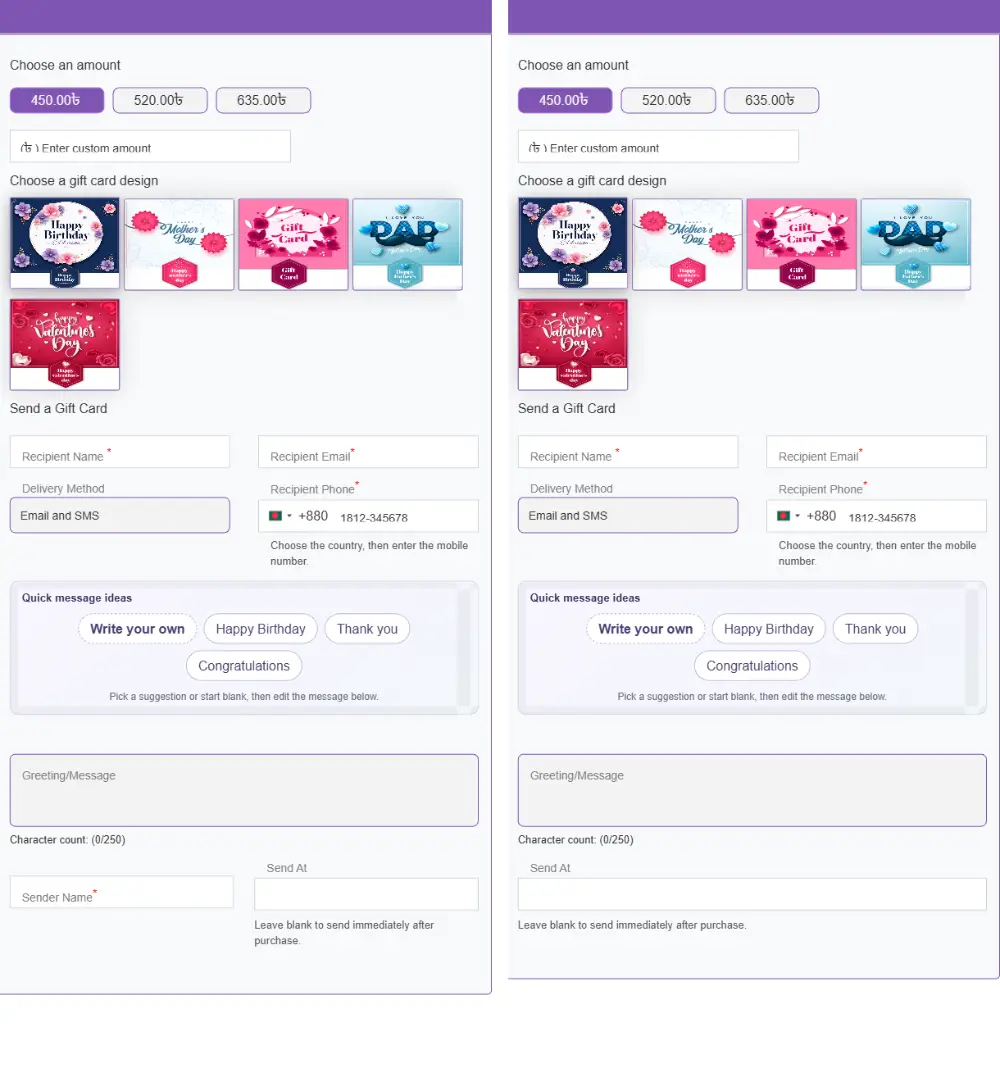
- Save, then open a gift card product page: with Billing name, Others or None the sender name field is no longer there. Then place a test order and check the cart, the checkout and the email.
Which sender name option fits your store
Our suggestion, based on how each choice works:
- Buyer: keep it if you want the gift to carry the name the buyer chooses to type.
- Billing name: useful when the sender should match the person who paid, without asking twice. It also removes one field from the form.
- Others: fits cards that should come from your shop rather than from a person.
- None: fits cards where you do not want a sender name stored on the card. We have not checked what the recipient sees in the email, PDF or card page.
For developers: two sender name filters
1.1.5 adds two filters. The first changes where the name comes from, and the second changes the sender name resolved from the order.
wallregi_sender_name_sourcereceives the source (buyer,billing,customfor the “Others” option, ornone) and returns one of those four values. Any other value is treated asbuyer.wallregi_resolved_giftcard_sender_namereceives the resolved name, the source, the order and the name before resolution. Whatever you return is trimmed, has repeated spaces collapsed, and is cut to 100 characters.
An example that overrides the admin setting and uses no sender name. We have not run this snippet on a store, so test it first. Put it in a small custom plugin or a child theme, not in the plugin’s files.
add_filter( 'wallregi_sender_name_source', function ( $source ) {
	return 'none';
} );
Updating to 1.1.5
- Back up your site. Requirements: WordPress 6.5+, PHP 8.1+ and WooCommerce.
- Update the free plugin from Plugins in your WordPress admin. The sender name source stays on the buyer-typed default until you change it.
- Choose a source and test it, as described in the steps above.
- If you use GiftRocketWP Pro, its changelog lists 1.0.8 as compatible with this setting. We ran our tests with Pro 1.0.8 active next to free 1.1.5. The changelog does not say how earlier Pro versions behave.
How we tested the sender name setting
We ran free 1.1.5 with Pro 1.0.8 on a test site with WooCommerce, the block checkout and Direct bank transfer. For each of the four choices we opened the gift card product page, added a card to the cart, placed an order as a logged-in customer, completed the order and opened the issued gift card in wp-admin.
| Choice | Product form | Cart and checkout | Gift card record |
|---|---|---|---|
| Default | Sender Name field shown and required | The name the buyer typed | The typed name |
| Billing name | Field hidden | The customer’s billing name | The billing name |
| Others | Field hidden | The custom name | The custom name |
| None | Field hidden | No Sender Name line | Empty |
We also set “Others” with the custom name left empty. The product page then showed the Sender Name field again, as a required field, as the help text says. We read the sender name code in 1.1.5 and the changelogs for the 100-character limit and the two filters, which we did not run.
What we did not test:
- The email and PDF that the recipient gets. On our test site the email waited for a wallet pass, and we did not open the PDF.
- The classic checkout, a guest customer with Billing name, and the PHP snippet in this post.
- Pro features beyond running Pro 1.0.8 next to free 1.1.5.
FAQ
Can I hide the sender name field on a WooCommerce gift card?
Yes, with GiftRocketWP 1.1.5. Choose Billing name, Others (with a custom name entered) or None in “Gift card sender name field options”, and the sender field is hidden on the product form.
What happens to the sender name with each option?
With the default buyer-typed choice, the buyer types the sender name on the product form. With billing name, the plugin uses the order’s billing first and last name when it is not empty. With Others, it uses the custom name you set. With none, the card is saved without a sender name.
What happens if I choose Others and leave the custom name empty?
The plugin falls back to the buyer option, so the sender field is shown again. Choose none if you want no sender name.
Does it work with the block checkout?
Yes. The 1.1.5 changelog lists Classic and Blocks checkout. We placed orders on the block checkout with all four choices and the sender name followed the setting each time. We did not test the classic checkout.
Is the new sender name setting free or Pro?
Free. It is in the free plugin 1.1.5. Pro 1.0.8 is listed as compatible with it.
Install the free plugin from WordPress.org, or read about GiftRocketWP for WooCommerce and its Free and Pro features.