



 ChatGPT
 Claude
 Grok
 Gemini
 Perplexity
If you want to schedule gift card delivery in WooCommerce, you do not need a custom workflow or a staff member watching the clock. GiftRocketWP lets the buyer choose the delivery date at checkout, and the plugin sends the gift card email on that day. This post explains how the feature works, what you set up, and why it helps a store owner.
Scheduled delivery is part of the free plugin, per the plugin feature list and the WordPress.org plugin page. For the full list of free and Pro features, see the GiftRocketWP features page.
In this post
- Why scheduled gift card delivery helps a store
- How scheduled delivery works in GiftRocketWP
- Schedule gift card delivery in WooCommerce in four steps
- Manage scheduled deliveries as a shop owner
- Time zones, blank dates and other details
- Common scheduled delivery problems
- FAQ
Why scheduled gift card delivery helps a store
Most gift cards are bought for a date: a birthday, an anniversary, a holiday. A buyer who thinks of it two weeks early has two choices. They can buy now and forward the email later, or they can wait and risk forgetting. A date picker removes that problem.
Why schedule gift card delivery in WooCommerce: what the owner gets
- Earlier purchases. Buyers can pay when they remember, not when the occasion arrives, so buyers are not limited to buying on the day of the occasion.
- Less manual work. You do not forward emails or set reminders. The queue sends each message on its date.
- A better experience for the recipient. The card arrives on the day it matters, with the sender’s name and personal message.
- Clearer expectations. Buyers see the date they chose, and you can see every pending delivery in one list.
How scheduled delivery works in GiftRocketWP
When a customer buys a gift card, they fill in the recipient, the sender and a message. They can also pick a delivery date and time. After the order is placed, GiftRocketWP creates the card with its code and balance and puts the email in a queue. Per the plugin’s feature list, the queue runs every minute, so a message goes out within about a minute of its scheduled time once the site’s cron runs. If you are deciding between selling cards and issuing credit, read gift card vs store credit in WooCommerce.
| Step | What happens |
|---|---|
| 1. Buyer checks out | Fills in recipient, sender, message and the delivery date. |
| 2. Card is created | GiftRocketWP creates the code and balance for the order. |
| 3. Email is queued | The delivery waits in the scheduled queue until its date. |
| 4. Email is sent | The recipient gets the card, with a PDF if you enabled PDF gift cards. |
The email can carry a PDF gift card with a QR code, barcode or PDF417 code, so the recipient can redeem it at cart and checkout, classic or Blocks.
Schedule gift card delivery in WooCommerce in four steps
Install and activate the free plugin first. If you have not sold gift cards before, our guide on how to sell gift cards in WooCommerce covers the product setup.
- Create or open a gift card product. GiftRocketWP adds its own
wxgiftcardproduct type. - Choose preset amounts, or allow custom amounts with a minimum and maximum.
- Keep the recipient, sender and message fields on the product page. You can rename the labels and limit the message length.
- Place a test order with a delivery time a few minutes ahead, then check the Scheduled Deliveries screen.
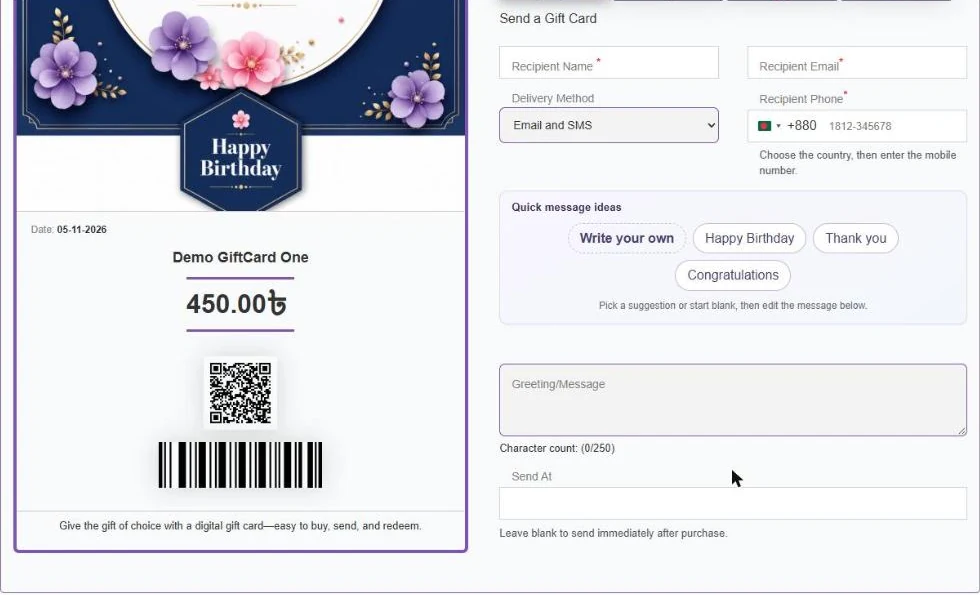
Always run that test order before you promote the product. It shows you the buyer’s view, the email and the queue entry together.
Manage scheduled deliveries as a shop owner
The admin side is where scheduling saves time. The GiftRocketWP dashboard lists scheduled deliveries, so you can see what is waiting and what has been sent.
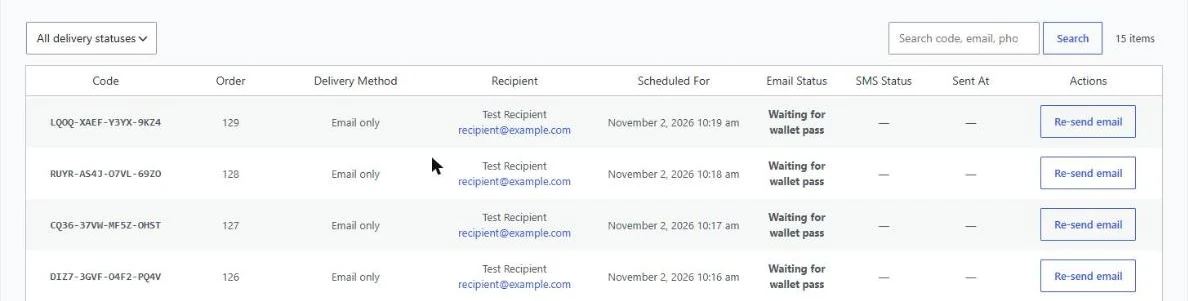
What you can do from the admin
- Search gift cards and scheduled deliveries.
- Resend an email (or an SMS, if you use SMS delivery) when a recipient says they did not get it.
- Create a gift card by hand, for a prize or a customer service fix.
- Import cards from a CSV file: up to 500 rows per file in the free plugin.
SMS delivery is a separate add-on that works through Twilio. It is not part of the free plugin. The buyer can choose email, SMS, both or none. See the SMS delivery page for details.
Time zones, blank dates and other details
A few details are worth knowing before you go live.
- Time zone. The plugin’s time zone handling was fixed in version 1.1.1, per the changelog. Make sure your WordPress time zone is set to your city, not a raw UTC offset.
- Blank delivery date. If the buyer leaves the date empty, the card is sent right away. The product page works the same way: leave the Send At field blank to send immediately after purchase.
- Site cron. Scheduled sends rely on WordPress scheduling. On a low-traffic site, a real server cron job is more reliable than the default page-load trigger.
- Expiry. You can set an expiry per product, so a card bought early still follows your rules.
For more ways to bring buyers to your gift card page, see these holiday gift card promotion ideas.
Common scheduled delivery problems
- The card was not sent. Open the Scheduled deliveries screen, check the Email Status column, then use the resend action for that card.
- The time looks wrong. Check the time zone in Settings, General. Scheduled sends use the site time zone.
- Nothing sends on a quiet site. Scheduled jobs run through WordPress scheduling, so a real server cron job is more reliable than the page-load trigger.
FAQ
Can buyers schedule gift card delivery in WooCommerce for free?
Yes. Scheduled email delivery is in the free GiftRocketWP plugin. SMS delivery is a separate add-on, not part of the free plugin.
How often does the delivery queue run?
Per the plugin’s feature list, the queue runs every minute. A message is sent shortly after its date and time arrive.
What happens if the buyer leaves the date empty?
The gift card is sent as soon as the order is processed.
Can I resend a scheduled gift card?
Yes. The admin dashboard lets you resend the email, or the SMS if you use SMS delivery.
Try scheduled delivery on your store
Install the free GiftRocketWP plugin, or see GiftRocketWP for WooCommerce for an overview.