User guide
1. What is Gift Rocket?
Gift Rocket (plugin name: Wallet Ready Gift Cards for WooCommerce) lets you sell digital gift cards in your WooCommerce shop.
- Customers buy a gift card product and fill in recipient details (name, email, message, and more).
- After payment, the store creates a gift card code with a balance.
- The recipient gets a PDF by email (you can schedule the send date).
- Anyone with the code can apply it at cart or checkout like store credit.
In the WordPress admin you will see the menu Gift Rocket → Gift Cards.
Free vs Pro
Free includes selling gift cards, PDFs, email, edit in cart, apply/redeem at cart and checkout, styling, wallet pass integration (ePasscard), fraud safeguards, and WooCommerce Blocks support.
Pro requires a valid Pro license (Gift Rocket → Pro license). Pro adds checkout editing, buyer image upload, greeting presets, partial redeem amount, order limits, bulk CSV import, expiry reminders, balance exports, REST API lookup, and the AI writing assistant (bring your own API key).
2. What you need
- WordPress 6.5 or newer
- PHP 8.1 or newer
- WooCommerce installed and active
- For Google / Apple Wallet passes: an ePasscard account and API key (optional)
3. Install the plugins
- Upload and activate Wallet Ready Gift Cards for WooCommerce (free).
- Make sure WooCommerce is active. If WooCommerce is missing, you will see an admin warning.
- (Optional) Upload and activate Wallet Ready Gift Cards for WooCommerce Pro. Pro only works when the free plugin is active.
- (Pro) Open Gift Rocket → Pro license, enter your license key, and activate. Pro features (checkout edit, AI, bulk import, etc.) stay disabled until the license is valid.
- Open Gift Rocket → Gift Cards and open the Settings tab to review defaults.
4. Quick start (first gift card in 10 minutes)
- Settings → General: Turn on Allow editing in cart if buyers should change details before checkout.
- Settings → Email: Set email subject and body. Use placeholders like
[giftcard_code]and[receiver_name]. - Products → Add new: Set product type to Gift Card. Add a price (fixed or custom amount). Add a product image (recommended size 923×400 px for PDF).
- Publish the product. Open it on the shop and test a purchase.
- When the order is paid, check Gift Rocket → Gift Cards dashboard for the new code and use Download PDF or wait for the scheduled email.
5. Admin menu overview
| Screen | What you do here |
|---|---|
| Gift Cards (dashboard) | Search, view, edit, delete issued cards; download PDF; create wallet pass |
| Settings | General, gift card form, PDF design, email, Google/Apple Wallet |
| Create / edit gift card | Manually issue a code (no order required) |
| System status | Check database tables are OK |
| Security log | See rate-limit and security events |
| What's included | Feature list for Free and Pro |
| Bulk CSV import Pro | Import many codes from a spreadsheet |
| Expiry reminders Pro | Automatic emails before cards expire |
| Outstanding balance exports Pro | Download liability / balance reports |
| Balance top-up Pro | Recharge existing cards via [wallregi_topup] |
| Transactions checker Pro | Public balance lookup via [wallregi_transactions] |
| AI assistant Pro | API keys, credits, rate limits, customizable shopper/staff messages |
| Pro license Pro | Activate or deactivate your Pro license for this site |
6. Settings explained
Open Gift Rocket → Gift Cards → Settings. Save each tab after changes.
6.1 General settings
- PDF footer from short description — Uses the product short description at the bottom of the PDF.
- Show full description on product page — Shows long product text on the gift card page.
- Character counter — Shows how many characters are left in the message field.
- Allow editing in cart Free — Buyers can open an edit window from the cart (classic cart and Cart block).
- Allow editing at checkout Pro — Same edit popup during checkout (shortcode and Checkout block). Only appears when Pro is licensed and this option is on. If Pro is not licensed, the setting is ignored.
- Price label / manual price placeholder — Text near amount fields.
- Gallery label — Title above card design images.
- Apply link goes to — When someone scans a QR code, open cart or checkout.
- Coupon code pattern — How auto-generated codes look (letters and numbers).
- Min / max custom amount — Limits when buyers type their own price.
- Max quantity per add to cart — How many gift card lines can be added at once from the product page.
- Fraud & abuse safeguards — Rate limits and security log (recommended: leave enabled).
6.2 Gift card form
Change labels (recipient name, email, message, sender, schedule) and colors/fonts for the form on the product page and in the edit popup.
6.3 PDF & email card design
- Layout: two columns (card image + details), borders, backgrounds (solid, gradient, or image).
- Barcode or QR on PDF — Code can be the gift card number or a link to apply at checkout.
6.4 Email delivery
- Subject, heading, and HTML body with placeholders.
- Attach PDF yes/no.
- Emails are sent by a background task (every few minutes) when the scheduled time is reached.
6.5 Google / Apple Wallet (ePasscard)
This is optional. You need your own ePasscard API key.
- Paste the API key and click Connect.
- Choose a pass template and map fields (recipient name, code, balance, expiry, image, etc.).
- On each gift card product you can override the template (optional).
- Passes are created after the gift card is issued. Buyers may see a wallet link on the order and in My Account → Gift cards.
Important
Apple and Google sign the passes on ePasscard servers. Gift Rocket only connects and stores the pass link on your site.
7. Create a gift card product
- Go to Products → Add new.
- In Product data, choose type Gift Card (not Simple product).
- Set a title, image, and short description (used on PDF footer if enabled).
- Pricing: Enable preset prices and/or “customer enters amount”. Set expiry (e.g. 1 year).
- Email schedule: Allow buyers to pick send date/time if you want scheduled delivery.
- Recipient on product page:
- Show form — Buyer enters recipient on the product page (default).
- Use billing or shipping at checkout — Hide recipient fields on the product page; name and email are taken from checkout instead (good for “gift to myself” or address-based gifts).
- Publish and test on the live or staging shop.
8. How customers buy a gift card
- Customer opens the gift card product page.
- They choose amount and card design (if you offer a gallery).
- They fill recipient details (unless your product uses billing/shipping at checkout).
- They click add to cart. They can add more than one different gift card line on the same page.
- They complete checkout and pay.
- When the order reaches the right status, the plugin creates the gift card in the database and queues email.
9. Edit gift card in cart or checkout
Cart editing is a free feature when Allow editing in cart is on. Checkout editing is Pro-only and requires a valid Pro license plus Allow editing at checkout.
- Classic cart / checkout — Button opens a popup to change name, email, message, sender, schedule, image, or price (if allowed).
- WooCommerce Cart block / Checkout block — Edit button appears under the product name in the block cart and order summary (same popup).
Tip — line price and order review
After saving, cart and checkout totals should update to the new amount right away (classic checkout triggers a refresh; Blocks use the cart Store API). If the order review still shows an old price, hard-refresh the page once or click Update cart on classic checkout.
10. Redeem a gift card (use balance)
Customers apply a code to reduce the order total.
- On cart or checkout, open “Have a gift card code?” (or similar text you configured).
- Enter the code and apply.
- The discount appears as a fee/credit. Remaining balance stays on the card for later orders (until expiry).
Pro Choose redeem amount: If enabled, the customer can enter how much of the card balance to use on this order (within your min/max rules).
QR codes on PDFs can open the shop with the code pre-filled (?wallregi_apply_giftcard=CODE).
11. Manage gift cards in the dashboard
- Search by code, email, or order.
- Edit balance, expiry, recipient, message (careful: changing codes is restricted).
- Create gift card — Issue a code without an order (events, compensation, partners).
- Download PDF — Send or print manually.
- Create missing wallet pass — If ePasscard is connected but pass failed earlier.
- Status — Active, cancelled, etc. (affects redeem).
12. Purchaser My Account
Logged-in customers who bought gift cards see My Account → Gift cards.
- List of cards from their orders
- Download PDF
- Open wallet pass link when available
- View transaction history per card
13. Pro features (detailed)
13.1 Pro license
Go to Gift Rocket → Pro license. Enter the license key from your purchase and click activate. The site is checked against the license server (and re-checked daily). Deactivate before moving the site to another domain if your plan allows only one site.
Without a valid license, Pro menus may appear but checkout edit, AI, bulk import, and other Pro runtime features do not run.
13.2 Edit at checkout
With a valid license, turn on Allow editing at checkout under Settings → General. Works on shortcode checkout and the Checkout block.
13.3 Buyer custom image
Buyers upload a photo used on the card. Set max size, daily limit, and who may upload (all visitors or logged-in only). Optional ClamAV virus scan if your server supports it. Old unused uploads are cleaned automatically.
13.4 Greeting presets
In Form settings, add lines like Birthday | Happy birthday! (title, pipe, message). Buyers click a chip to fill the message. You can override presets per product.
13.5 Order rules
- Max number of different gift card codes per order
- Min and max total discount from all applied codes combined
13.6 Bulk CSV import
Gift Rocket → Bulk CSV import. Download the sample file. Required columns: amounts, expiry, recipient name, recipient email, sender name. Optional: code (empty = auto-generate), message, product ID, send date, image URL.
Flow: upload → validate → import runs in background → check job status.
13.7 Expiry reminder emails
Send reminders at 30, 14, 7 days before expiry (configurable). Each card gets one email per milestone. Recipients can unsubscribe from a link in the email.
13.8 Outstanding balance export
Download CSV reports for accounting: details (one row per card) or summary (grouped totals).
13.9 AI writing assistant
Gift Rocket → AI (Pro + valid license). You connect your own provider (OpenAI, OpenRouter, Google Gemini, or Anthropic) with an API key stored encrypted on your site.
- Enable AI master switch and choose provider/model.
- Daily credits — separate pools for storefront (shoppers) and admin tools, plus a site total cap.
- Storefront — optional “Get message” / “Improve text” / translate on the gift card form and cart edit modal (storefront AI is off by default).
- Admin — help write delivery email fields, expiry templates, greeting preset lines, product heading/footer, and manual gift card messages.
- Rate limits — cooldown between clicks, max uses per shopper visit, and matching hourly IP cap (see the built-in help on the AI screen).
- Customize messages — override shopper and staff-facing error/status text; leave a field empty to keep the default shown as placeholder.
- Alerts — email to admins when daily usage nears the limit (~95%). Shoppers never see raw API error text.
13.10 Gift card balance top-up & recharge
Pro Gift Rocket Pro lets customers or gift recipients recharge and add funds to an existing active gift card without needing to purchase a brand new code.
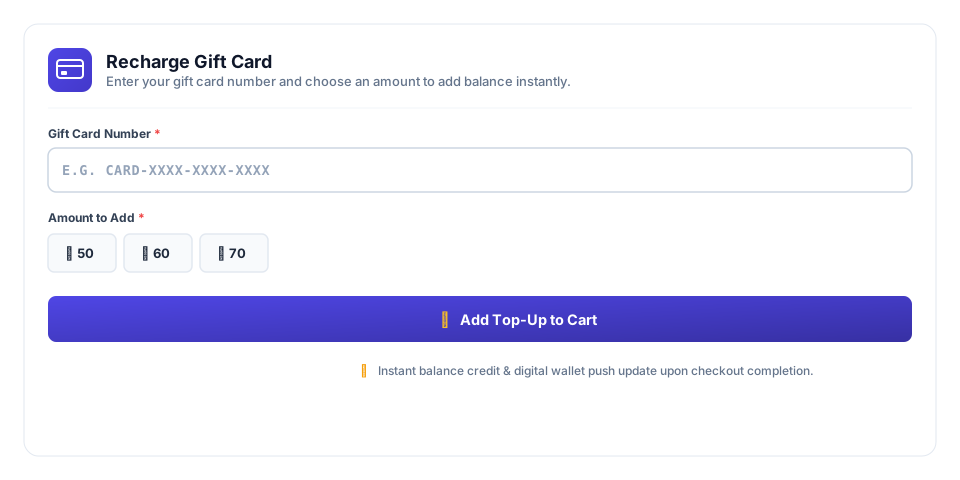
How to set up Top-Up (Step-by-step):
-
Step 1 — Enable Global Top-Up in Settings:
- Open Gift Rocket → Gift Cards → Settings → General tab.
- Scroll down to the Balance top-up section.
- Check the box: Enable gift card balance top-up.
- Set the Minimum top-up amount and Maximum top-up amount (enter
0for no maximum). - Choose when funds are credited: Credit card balance when order is → Order completed (recommended) or Payment complete.
- Click Save changes at the bottom.
-
Step 2 — Create a Top-Up WooCommerce Product:
- Go to Products → Add New.
- Keep the Product Data type as Simple product and check Virtual. (Note: Do not select 'Gift Card' product type; use standard Simple Product).
- Under the General tab, check the checkbox: Gift card balance top-up.
- Choose the Top-up amount mode:
- Fixed amount (product price): Uses the product's regular price or an optional fixed top-up amount override.
- Customer chooses amount (variable): Check Allow custom amount and/or enter comma-separated Preset top-up amounts (e.g.
25, 50, 100).
- Extend expiry on top-up (Optional): Choose Add years or Add months, set the extension value, and pick whether the new expiry is calculated From order date or From current card expiry.
- Click Publish.
-
Step 3 — Deploy on Frontend (Two Options):
- Option A — Dedicated Recharge Page (Shortcode): Create a new WordPress page (e.g. Pages → Add New → "Recharge Gift Card") and add the shortcode:
[wallregi_topup]
This provides a standalone, dedicated balance recharge portal. - Option B — Direct Product Page: Shoppers can also visit the Top-Up product page directly in your store catalog. Gift Rocket automatically replaces the default add-to-cart button with the interactive Gift Card validation and reload form.
- Option A — Dedicated Recharge Page (Shortcode): Create a new WordPress page (e.g. Pages → Add New → "Recharge Gift Card") and add the shortcode:
💳 Customer Top-Up Journey
- Customer enters their existing gift card code.
- Real-time AJAX validates that the code exists, is active, and is not expired.
- Customer types or clicks a preset reload amount (e.g. $50.00) and adds it to cart.
- Payment is processed through standard WooCommerce checkout (Credit Card, PayPal, etc.).
⚡ Instant Settlement & Wallet Sync
- Once the order reaches the configured status (Completed or Processing), balance is instantly incremented.
- A new
topuprecord is written to the immutable transaction ledger. - Connected Apple Wallet & Google Wallet passes update automatically via ePasscard push within seconds!
13.11 Balance & transaction history checker
Pro Allow shoppers and recipients to check their current available gift card balance, status, expiry, and full transaction history from any public page.
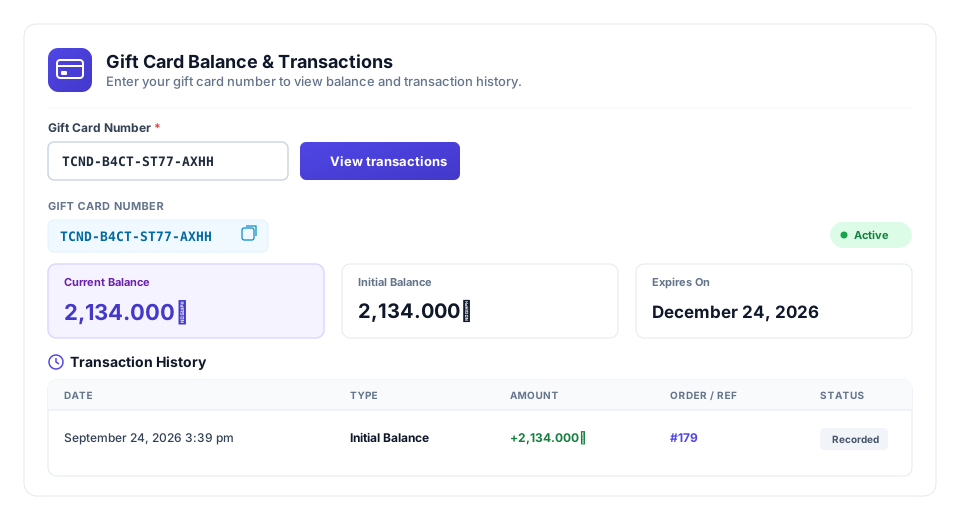
How to set up the Balance Checker:
-
Create a Balance Checker Page: Create a new page (e.g. Check Gift Card Balance) and paste the shortcode:
[wallregi_transactions] - Customize Appearance & Text: Go to Gift Rocket → Settings → Transactions tab to customize form title, subtitle, search placeholder, button label, and result text.
-
Test on Frontend: Enter an issued gift card code and click View transactions. The responsive widget immediately renders:
- Card Header & Status: Displays the Gift Card Number with a 1-click copy-to-clipboard button and a real-time status badge (
● Activeor● Expired). - 3 Summary Stat Cards:
- Current Balance: Prominently highlighted card with the remaining available balance in your store's currency.
- Initial Balance: Original starting amount when the card was issued.
- Expires On: Expiry date (e.g. December 24, 2026).
- Transaction History Ledger Table: Clean chronological table listing:
- Date: Exact date and timestamp of the transaction.
- Type: Initial Balance, Order Redemption, or Balance Top-Up.
- Amount: Credit (
+) or debit (-) amount. - Order / Ref: Linked WooCommerce Order ID (e.g. #179) or manual issuance reference.
- Status: Verification status badge (e.g. Recorded).
- Card Header & Status: Displays the Gift Card Number with a 1-click copy-to-clipboard button and a real-time status badge (
Brute-Force Security Protection
The [wallregi_transactions] lookup is strictly protected by Gift Rocket's fraud safeguards, rate limiting, and WordPress nonces to prevent bot scraping or automated balance guessing.
14. Multi-language & Translation Guide
Gift Rocket (Free) and Gift Rocket Pro are built from the ground up to be 100% translatable and multilingual-ready. Whether you want to translate your store into a single local language (like Spanish, German, or Arabic) or run a multi-currency, multi-language international store with WPML or Polylang, all user-facing forms, emails, cart edit popups, and checkout blocks adapt seamlessly.
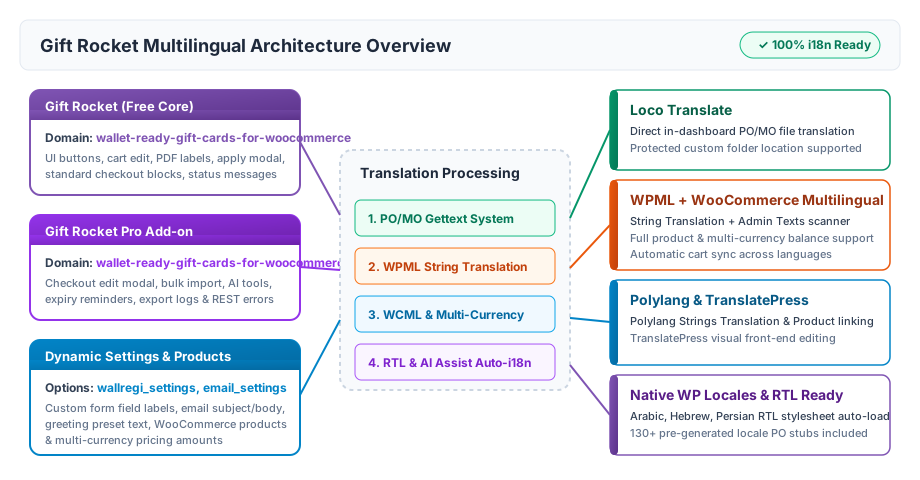
14.1 Text domains & string types
Gift Rocket uses standard WordPress gettext functions (__(), _e(), esc_html__(), _x()). Strings are split into two text domains:
- Free Plugin text domain:
wallet-ready-gift-cards-for-woocommerce— Controls the gift card product form, classic cart & block cart editing, apply coupon modals, PDF card rendering, purchaser My Account table, and email notifications. - Pro Plugin text domain:
wallet-ready-gift-cards-for-woocommerce-pro— Controls checkout editing popup, bulk CSV import screen, expiry reminder logs, liability balance exports, AI assistant configuration, and REST API error responses.
Static strings vs. Dynamic settings
Static strings (e.g. "Enter custom amount", "Add to cart", "Have a gift card code?") come from the plugin code and are translated via Loco Translate or WPML String Translation.
Dynamic settings (e.g. custom form labels you typed into Settings → Gift card form or custom email bodies in Settings → Email) are saved in WordPress options (wallregi_settings and wallregi_email_settings). These are translated via WPML Admin Texts or by switching languages in your admin.
14.2 Translating with Loco Translate (Step-by-step)
Loco Translate is the most popular free plugin for translating WordPress plugins directly inside your WordPress dashboard into your site's native language.
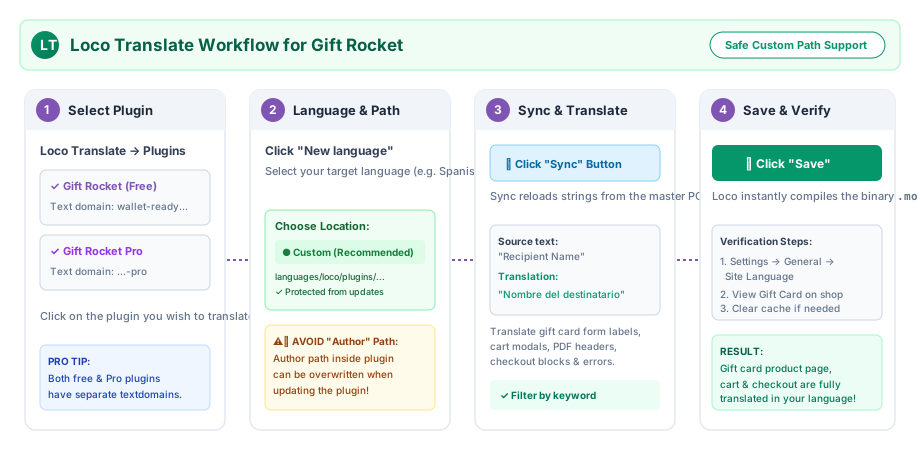
- Open Loco Translate: In the WordPress admin menu, go to Loco Translate → Plugins.
- Select Gift Rocket: Click on Gift Rocket – Ultimate Gift Cards for WooCommerce (or Wallet Ready Gift Cards for WooCommerce Pro if translating Pro features).
-
Add or Edit Language:
- If your language is already listed, click Edit.
- If not listed, click New language, choose your target language (e.g. Spanish, German, French, Arabic).
-
Choose Safe Location (Important): Under Choose a location, select Custom (
languages/loco/plugins/...) or System (languages/plugins/...).
⚠️ Warning: Do not choose "Author" location, or your translations will be overwritten when you update Gift Rocket! -
Sync Strings: Click the Sync button at the top toolbar to ensure all latest strings from the
.pottemplate are loaded. -
Translate & Save: Use the search box to find strings (e.g. "Recipient Name", "Apply Gift Card"). Enter your translated text in the bottom translation box and click Save. Loco will immediately compile the
.mofile. - Set Site Language: Make sure your WordPress language matches under Settings → General → Site Language.
14.3 Translating with WPML & WooCommerce Multilingual (WCML)
Gift Rocket is fully compatible with WPML (WordPress Multilingual), WPML String Translation, and WooCommerce Multilingual & Multicurrency (WCML).
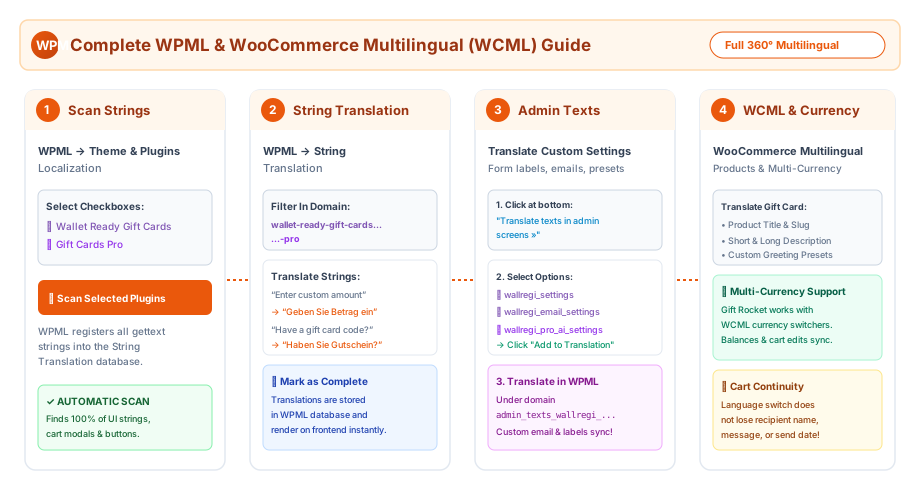
A. Scan Gift Rocket for strings
- Go to WPML → Theme and plugins localization.
- Scroll down to the Strings in the plugins table.
- Check the boxes for Wallet Ready Gift Cards for WooCommerce and Wallet Ready Gift Cards for WooCommerce Pro.
- Click Scan selected plugins for strings. WPML will register all gettext strings in its database.
B. Translate static UI strings
- Go to WPML → String Translation.
- In the In domain dropdown, choose
wallet-ready-gift-cards-for-woocommerce(orwallet-ready-gift-cards-for-woocommerce-pro). - Click on any string or click the + icon under your target language column to enter translations.
- Check Translation is complete and save.
C. Translate dynamic settings & email templates (Admin Texts)
If you customized the field labels or email templates under Gift Rocket → Settings, register them in WPML:
- Go to WPML → String Translation and scroll to the bottom.
- Click the blue link: « Translate texts in admin screens ».
- Look for the option keys:
wallregi_settings— Expand to select custom form labels, pricing labels, gallery title, etc.wallregi_email_settings— Expand to select custom email subject lines, email headings, and message body text.wallregi_pro_ai_settings— (Pro) Expand to translate custom shopper alert messages.
- Check the boxes next to the keys you customized and click Add to String Translation at the bottom.
- Return to WPML → String Translation and filter domain by
admin_texts_wallregi_settingsto translate them for each language.
D. Translate Gift Card products & multi-currency
- Product Translations: Go to WooCommerce → WooCommerce Multilingual → Products. Click the + icon next to your Gift Card product to translate title, short description (PDF footer), long description, and gallery presets.
- Multi-Currency: Gift Rocket seamlessly supports WCML multi-currency mode. Fixed price tiers and custom amounts are converted into the active customer currency during purchase and redemption.
- Cart Language Switching: If a buyer switches language while a gift card is in the cart, all custom data (recipient name, message, scheduled delivery date, custom image) remains intact.
14.4 Translating with Polylang & Polylang for WooCommerce
If you use Polylang or Polylang for WooCommerce:
- Gift Card Products: In Products → All Products, click the + icon under the target language flag to create a translated gift card product.
- Strings: Navigate to Languages → Translations (Strings translations) to translate registered plugin strings and domain labels.
- Cart & Checkout: Polylang preserves gift card session data and cart line prices when switching language switchers.
14.5 Front-End Visual Translation with TranslatePress
TranslatePress translates your site visually directly from the front-end:
- Open any Gift Card product page on your shop and click Translate Page in the WordPress top admin bar.
- Hover over any label (e.g. "Recipient Name", "Delivery Date", "Add to Cart") and click the pencil icon to provide the translation in the sidebar.
- Open the cart and checkout pages to translate the Edit gift card popup and Have a gift card code? redemption input.
- Click Save Translation. TranslatePress automatically delivers the translated strings dynamically.
14.6 Translation plugins comparison matrix
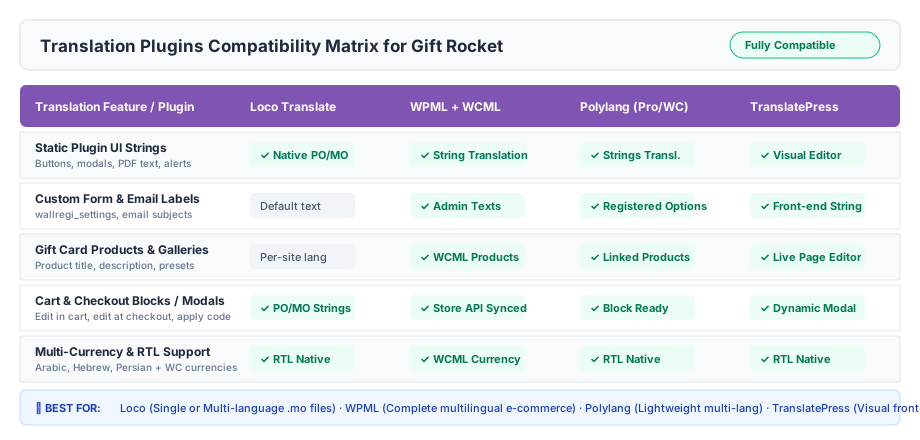
| Feature | Loco Translate | WPML + WCML | Polylang | TranslatePress |
|---|---|---|---|---|
| Best for | Single-language sites / PO-MO files | Full multilingual e-commerce | Lightweight multi-language | Visual front-end editing |
| Static UI Strings | ✓ Native PO/MO | ✓ String Translation | ✓ Strings Translation | ✓ Visual Click-to-Edit |
| Dynamic Settings (Form/Email) | Default gettext strings | ✓ Admin Texts | ✓ Polylang Strings | ✓ Front-end detected |
| Product Translation | Single language per site | ✓ WCML Products | ✓ Linked Products | ✓ Visual on page |
| Multi-Currency Support | WooCommerce default | ✓ Full WCML Multi-Currency | ✓ Compatible | ✓ Compatible |
| RTL (Arabic, Hebrew, Persian) | ✓ Full RTL Support | ✓ Full RTL Support | ✓ Full RTL Support | ✓ Full RTL Support |
14.7 Right-to-Left (RTL) Language Support
Gift Rocket features built-in native RTL (Right-to-Left) styling for languages such as Arabic (العربية), Hebrew (עברית), Persian/Farsi (فارسی), and Urdu (اردو).
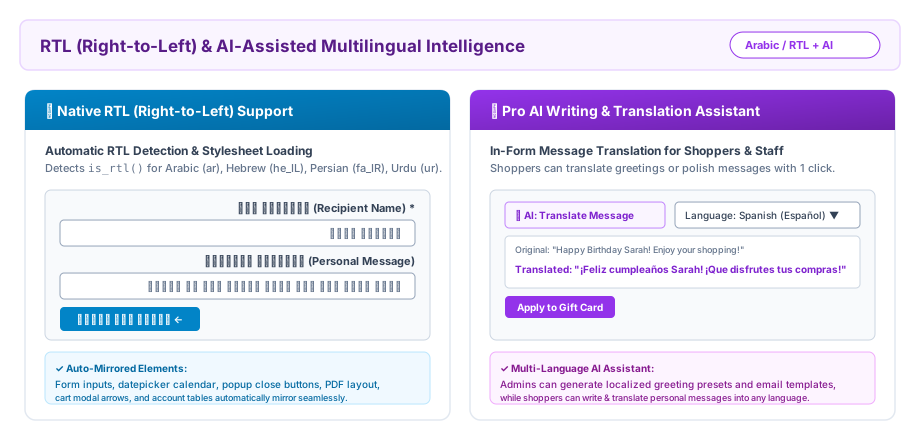
🌙 Automatic RTL Detection
When an RTL language is selected in WordPress or switched via WPML/Polylang, Gift Rocket automatically detects is_rtl() and loads dedicated RTL styling:
- Form input labels, placeholders, and helper text align to the right.
- Calendar datepicker popup mirrors direction.
- Cart & checkout edit modals mirror close buttons and action buttons.
- PDF gift card typography formats cleanly in RTL.
✨ Pro AI Writing & Instant Translation
Pro Gift Rocket Pro includes an integrated AI Writing Assistant with multi-language support:
- Shopper In-Form Translation: Customers can write a personal message and click the AI button to translate or refine it in their recipient's language with 1 click.
- Admin Greeting Presets: Generate culturally adapted greeting presets for birthdays, holidays, and corporate events across different languages.
14.8 Translation troubleshooting & FAQs
| Issue | Cause | Solution |
|---|---|---|
| Translations disappeared after plugin update | Translation file was saved in the plugin folder (Author location). | In Loco Translate, move your .po/.mo files to the Custom location (wp-content/languages/loco/plugins/) to keep them safe from updates. |
| New strings from an update are missing in Loco Translate | The .po file is out of sync with the latest .pot template. |
Open the language in Loco Translate and click the Sync button. This pulls new strings without deleting existing translations. |
| A string changed in Settings is not showing translated | Custom labels in Settings override gettext files. | If using WPML, register the setting under WPML → String Translation → Translate texts in admin screens » (see Section 14.3C). If using Loco, leave the setting blank in Settings → Gift card form to let the translated gettext default show. |
| Translations not appearing on the live shop | Caching plugin or object cache holding old HTML/strings. | Clear your caching plugin cache (WP Rocket, LiteSpeed, etc.) and browser cache. Ensure Settings → General → Site Language matches your translation locale. |
| Pro strings still in English | Free plugin translated but Pro text domain was not translated. | Gift Rocket Pro uses a separate text domain (wallet-ready-gift-cards-for-woocommerce-pro). Ensure you translate both plugins in Loco Translate or WPML. |
15. WooCommerce Blocks vs classic pages
| Feature | Classic shortcode | Cart / Checkout block |
|---|---|---|
| Buy gift card | Yes | Yes |
| Apply gift card code | Yes | Yes (dedicated UI in blocks) |
| Edit gift card line (cart) | Yes (free setting) | Yes (free setting) |
| Edit at checkout | Yes (Pro + license) | Yes (Pro + license) |
16. Troubleshooting
| Problem | What to check |
|---|---|
| Email not sent | Scheduled time in the past? Cron running on host? Email settings and spam folder. |
| Code not applying | Card expired or zero balance? Wrong code? Pro max codes per order? |
| PDF missing image | Product or selected gallery image set? Recommended 923×400 px. |
| Wallet pass missing | ePasscard API connected? Template mapped? Use “create missing pass” on dashboard. |
| Edit button missing on checkout | Pro licensed? “Allow editing at checkout” on? Hard-refresh after save. |
| Order review shows old gift card amount | Hard-refresh or update checkout; ensure you clicked Update in the modal. Amount is synced on save. |
| Pro features visible but not working | Activate license under Gift Rocket → Pro license. |
| AI not available to shoppers | Pro licensed? Master AI on? Storefront greeting/translate enabled? Credits left today? |
| Too many apply attempts | Security rate limit — wait or check Security log. |
| Language not translating | Check Section 14: Multi-language & Translation Guide for step-by-step Loco Translate and WPML guides. |
17. Simple glossary
- Gift card code — The coupon-like code the customer types at checkout.
- Balance / current amount — Money left on the card.
- Initial amount — Starting value when the card was created.
- Preferred date/time — When the gift email should be sent.
- Redeem / apply — Using the card balance to pay for an order.
- Text domain — Unique identifier for translatable plugin strings (
wallet-ready-gift-cards-for-woocommerce). - PO / MO files — Standard gettext translation files (PO is human-readable, MO is compiled binary).
- Admin texts — Dynamic strings stored in the database options (like custom form labels).