



 ChatGPT
 Claude
 Grok
 Gemini
 Perplexity
A gift card balance check in WooCommerce answers the most common question after a gift card is sent: “How much do I have left?” GiftRocketWP lets customers see their balance, expiry date and transaction history, so you answer fewer emails. This post explains where customers find that information, what the free plugin includes and what Pro adds.
The details follow the WordPress.org plugin page and the GiftRocketWP features page.
In this post
- Why a gift card balance check in WooCommerce matters
- What customers can check in the free plugin
- Advanced balance lookup in Pro
- What the shop owner sees
- Tips to reduce support questions
- FAQ
Why a gift card balance check in WooCommerce matters
A gift card is spent in pieces. A customer buys one item, then wonders what is left. If they cannot find out, they email you or they leave the balance unused. Neither helps you.
Gift card balance check in WooCommerce: what the owner gets
- Fewer repeat questions. Customers look up the balance themselves.
- Possibly more repeat visits. A customer who can see money left on a card has a reason to come back and spend it.
- Trust. A clear history shows where each part of the balance went.
What customers can check in the free plugin
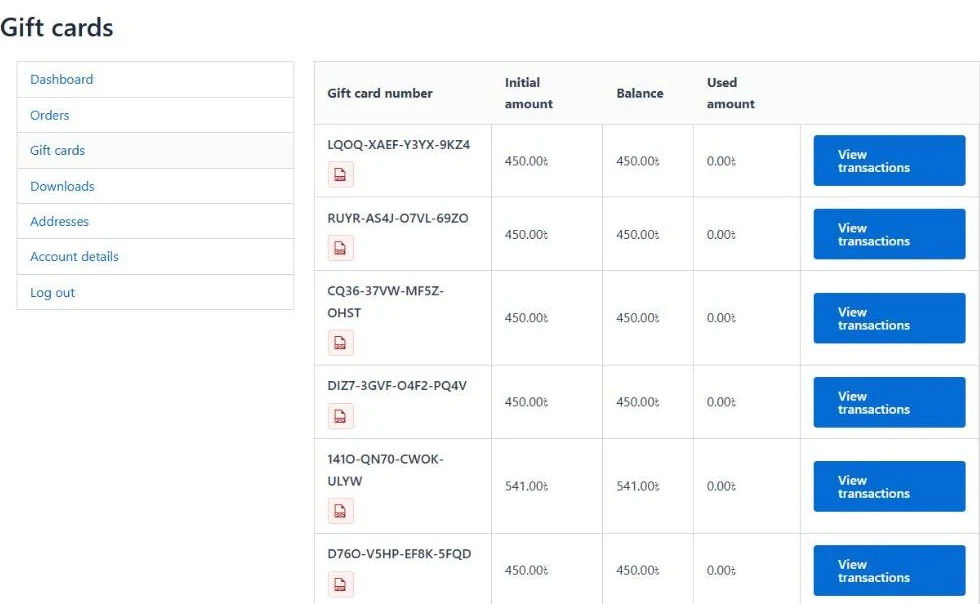
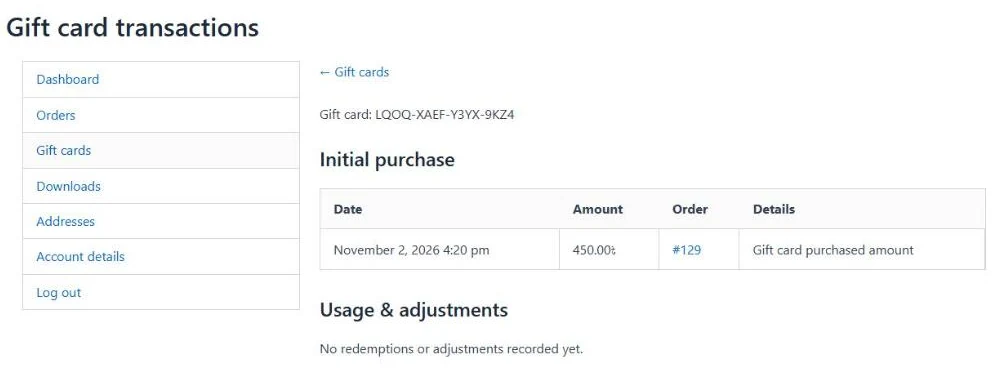
GiftRocketWP manages a gift card as a reusable balance instead of a one-time coupon. Per the plugin page, customers can check their gift card balance, status, expiry date and transaction history in My Account. The purchaser also has a My Account screen for the gift cards they bought, with PDF download and wallet pass links when available. Wallet passes use ePasscard with your own API key, which is free up to 50 live passes and paid after that.
| What the customer wants to know | Where to find it |
|---|---|
| How much is left? | My Account, gift card balance. |
| When does it expire? | Per the plugin page, expiry shows in My Account. Our screenshot below shows balance and used amount only. With Pro, the lookup page can show expiry too. |
| What was spent? | My Account, transaction history. |
| Where is the PDF? | My Account, PDF download link. |
Advanced balance lookup in Pro
GiftRocketWP Pro adds a lookup that you place on any page with the [wallregi_transactions] shortcode, per the plugin page. A visitor can check a card balance and transaction history without browsing My Account. Pro also adds a REST API to look up gift cards and transactions.
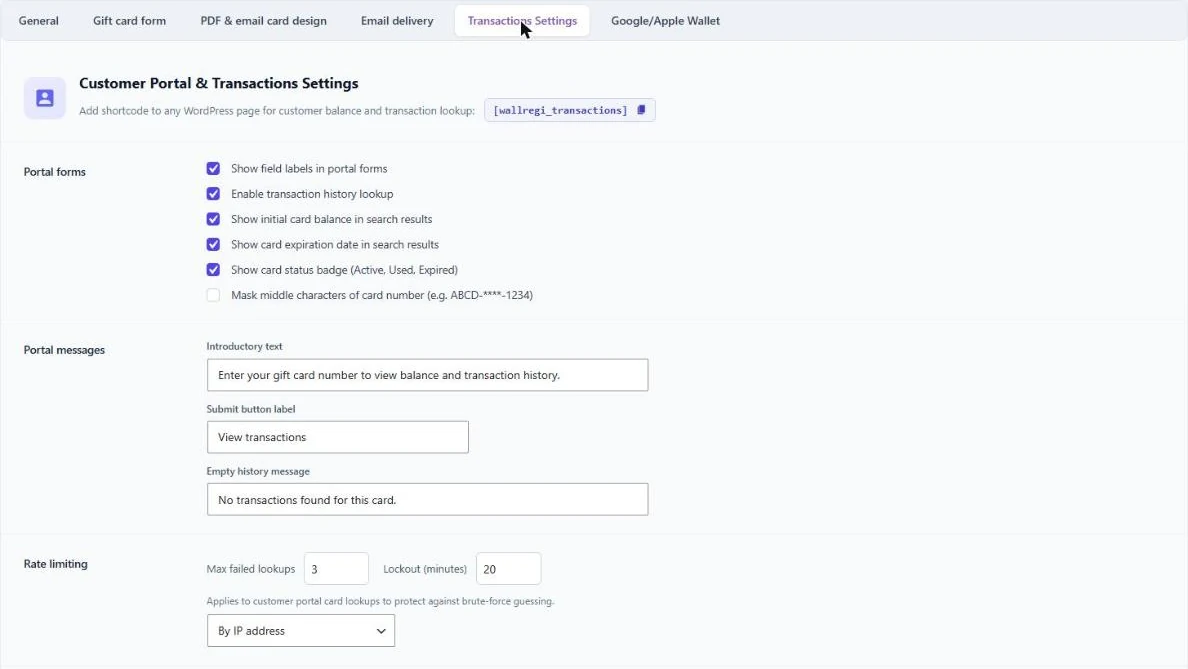
We looked at these settings on a test store but did not run a full lookup, so check the page output in your own store.
What the shop owner sees
- A central dashboard to search, filter, issue and edit gift cards.
- Balances and audit logs, so you can see what happened to a card.
- Restored balance when a partial refund is made, added in version 1.1.3.
- With Pro, an export of outstanding balances for accounting.
Tips to reduce support questions
- Tell buyers in the gift card email where the balance can be checked.
- Add a short line on the product page: “Check your balance anytime in My Account.”
- Set an expiry on the product only if the rules where you sell allow it, and say so clearly.
- Place a test order, spend part of the card, and confirm the balance and history update.
See how to sell gift cards in WooCommerce for the full setup, and gift card vs store credit for how balances differ from credit.
FAQ
Can customers do a gift card balance check in WooCommerce?
Yes. In GiftRocketWP, customers can check balance, expiry date and transaction history in My Account.
Do guests need an account?
Redemption is guest-friendly, and gift cards are not locked to a single customer account, per the plugin page. The My Account screens need a logged-in customer.
What does Pro add for balance lookup?
Pro adds the [wallregi_transactions] shortcode for an advanced lookup, plus REST API endpoints.
Is the balance restored after a partial refund?
Yes. Balance restore on partial refunds was added in version 1.1.3.
Let customers check their balance
Install the free GiftRocketWP plugin, or see GiftRocketWP for WooCommerce.