


 ChatGPT
 Claude
 Grok
Grok
 Gemini
 Perplexity
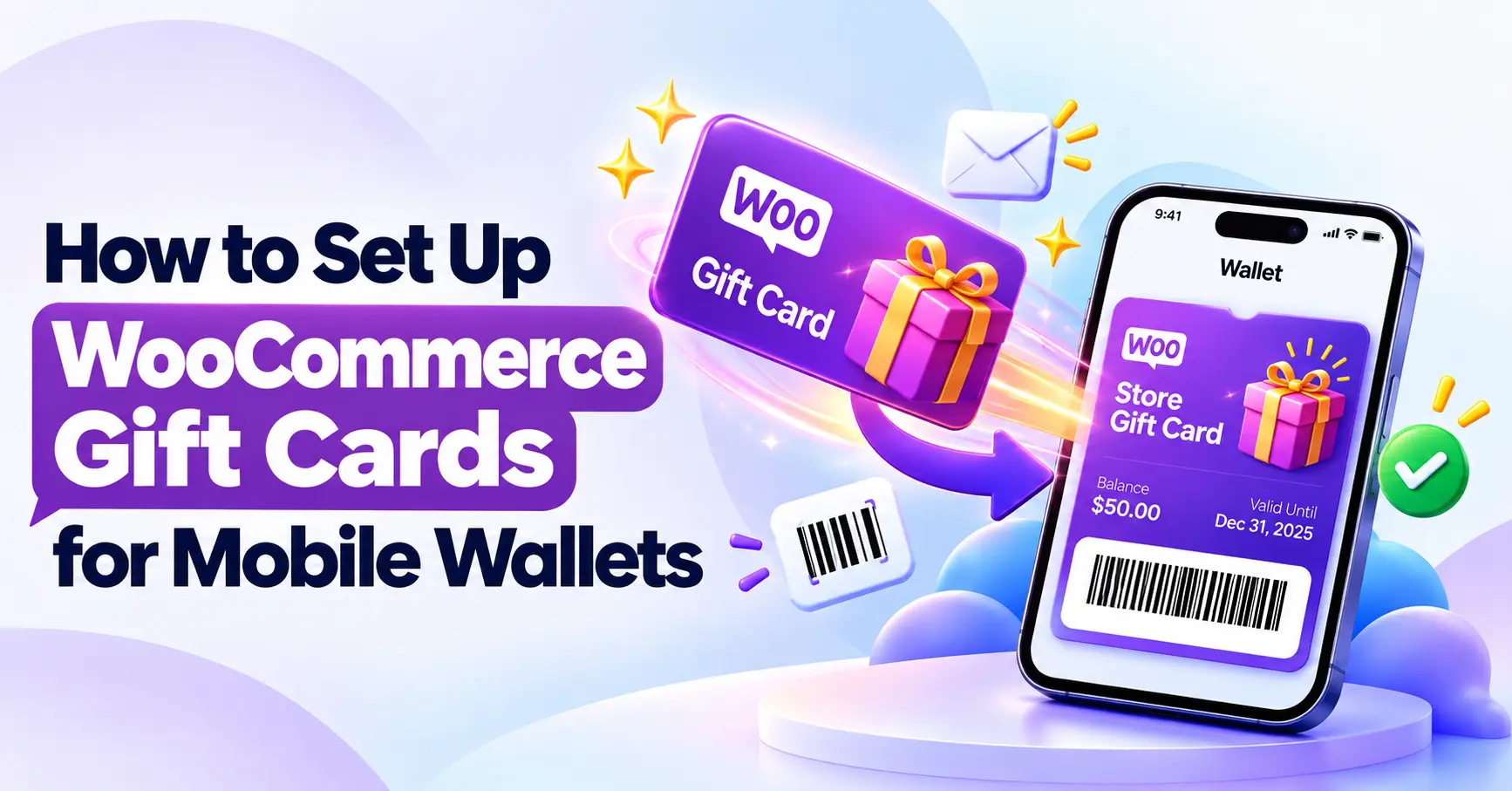
Nothing hurts more than a gift card that someone forgets to use. Shoppers lose gift codes under mountains of unread newsletters. That is why smart stores use WooCommerce gift cards for mobile wallets. This change ensures every thoughtful present stays visible on their phone.
You can connect your store directly to Apple Wallet and Google Wallet. This setup turns store vouchers into live mobile wallet passes inside popular digital wallets. Shoppers see live balance updates on their screen and redeem funds with one tap.
This guide walks through every stage of the setup from start to finish. You will learn how to link wallet services, create cards, and test customer checkouts. We will use the GiftRocket plugin to build this seamless shopping experience.
Why Your Online Store Gift Cards Need Google/Apple Wallet Compatibility
A good gift should bring happiness, not an email search headache. Active support for mobile wallets gives digital gift cards a safe home on smartphones. Store owners eliminate lost vouchers and make gift redemption exciting for buyers. A WooCommerce store with this setup turns annoying clutter into instant delight.
Real consumer habits clearly prove why this matters. Worldpay’s 2026 Global Payments Report notes digital wallets accounted for 56% of global eCommerce transaction value in 2025. Also, Fiserv’s 2025 consumer research found that two-thirds of surveyed US consumers prefer digital gift cards. When choosing digital over physical gift cards, 70% cited instant delivery, while 49% valued ease of purchasing.
Payment checkout habits do not directly equal gift card habits. However, customers expect the same level of comfort across all mobile devices. Shoppers love digital gifting and mobile gifting when checkout feels fast and simple. A thoughtful WooCommerce store satisfies these wishes to keep buyers happy.
The practical magic shines in the daily customer journey. A gift card recipient receives the credit and instantly saves mobile wallet passes. The pass stays organized, remains easy to find later, and redeems smoothly. This simple convenience helps every shopper enjoy their present without stress.

Meet GiftRocket: Mobile Wallet Compatible Gift Cards for WooCommerce
To make a WooCommerce gift card wallet-ready, your store needs one essential capability. It must turn the issued gift card into a pass for Apple Wallet or Google Wallet. Without this bridge, shoppers get stuck with static email codes. That is where GiftRocket comes into this setup.
Store owners often fear technical setups and complex code. GiftRocket removes that headache completely for your business. The plugin handles card creation inside WooCommerce and links directly with ePasscard. Together, they generate verified wallet-ready gift cards without stress.
This setup keeps the entire gifting process smooth and reliable. You can create WooCommerce gift cards with custom designs and fixed values. Buyers personalize notes and deliver digital gift cards directly to recipients. Every card includes quick Apple Wallet and Google Wallet access buttons.
Redemption works just as smoothly at your online checkout. The system tracks each card’s balance and automatically supports partial redemptions. Customers always view their remaining balance directly on the live wallet pass. This clean GiftRocket wallet integration protects your store from awkward support tickets. It creates a joyful experience for both buyers and merchants.
How the Plugin-to-Wallet Connection Works
You might wonder how these tools talk to each other. The entire process runs on a simple four-part chain. First, WooCommerce sells the gift card at checkout. Next, GiftRocket creates the unique gift card code. Then, ePasscard turns this data into a verified wallet pass. Finally, shoppers save the pass into Apple Wallet or Google Wallet.
WooCommerce Gift Cards for Mobile Wallets: Setup Guide
Now you know how the wallet tools connect behind the scenes. Follow this direct tutorial to set up WooCommerce gift cards for mobile wallets in five simple steps.
Step 1. Install and Activate GiftRocket Gift Card Plugin
Verify that your WooCommerce store is set up on your WordPress site. Next, open your WordPress admin dashboard and click on Plugins. Select Add New Plugin and search for GiftRocket. Click Install Now, and then select Activate.
This easy plugin setup prepares your store for digital gift cards. GiftRocket serves as your reliable gift card plugin for fast delivery. You are now ready to issue flexible WooCommerce gift cards. The core tools are now in place on your dashboard.
Step 2. Connect GiftRocket with Epasscard
Understand that ePasscard is a dedicated wallet service for smartphone passes. It handles pass authentication so mobile devices recognize your store vouchers. WooCommerce cannot create Apple or Google-certified passes on its own.
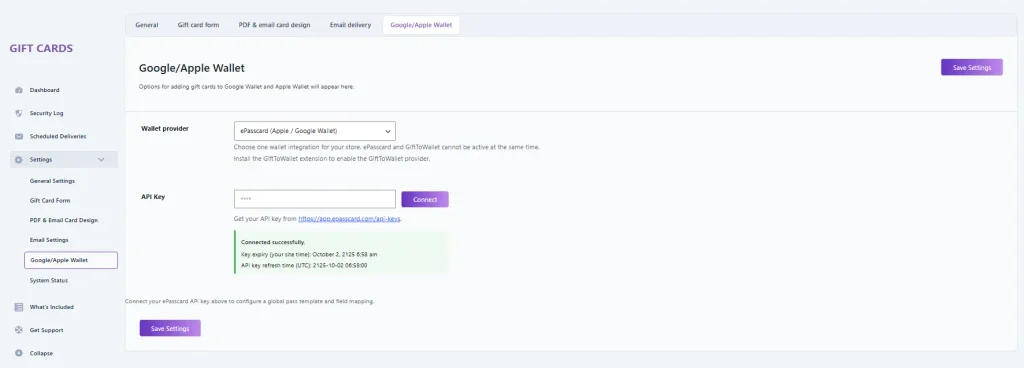
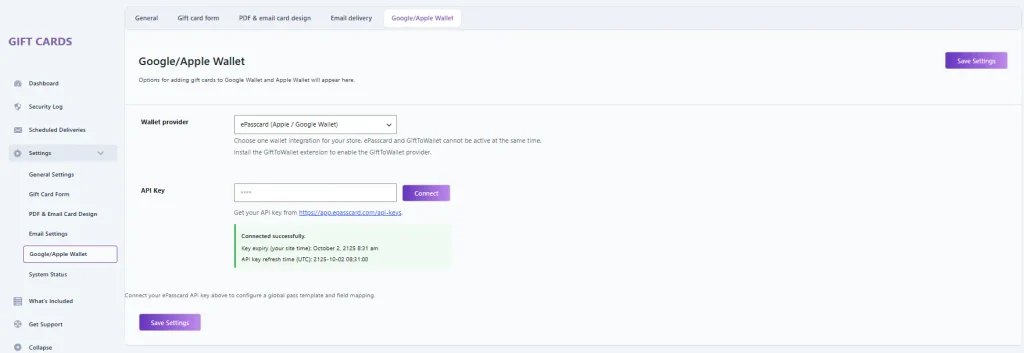
Open your WordPress menu and click on GiftRocket. Navigate to Wallet Settings and select the ePasscard API connection tab. Copy your private API key from your official ePasscard dashboard. Paste this API key into the GiftRocket wallet setup field.
Click Connect to verify the connection between GiftRocket and ePasscard. Once the connection is successful, a confirmation message will appear below the API Key field. Click Save Settings to save your wallet configuration.
Step 3. Set Up Apple Wallet and Google Wallet
To enable mobile wallet compatibility, navigate to GiftRocket → Settings → Google/Apple Wallet. Under Wallet Provider, select ePasscard (Apple / Google Wallet). Once your ePasscard API connection is successful, click Save Settings to save the configuration.
This integration connects GiftRocket with ePasscard to support Apple Wallet and Google Wallet passes for your digital gift cards.
- Apple Pay / Google Pay = paying at checkout
- Apple Wallet / Google Wallet gift card = storing gift cards for later redemption.
These passes do not handle checkout payment processing. Instead, they generate an Apple Wallet pass or a Google Wallet pass for storage. Every wallet pass keeps store credits organized inside their favorite digital wallet.
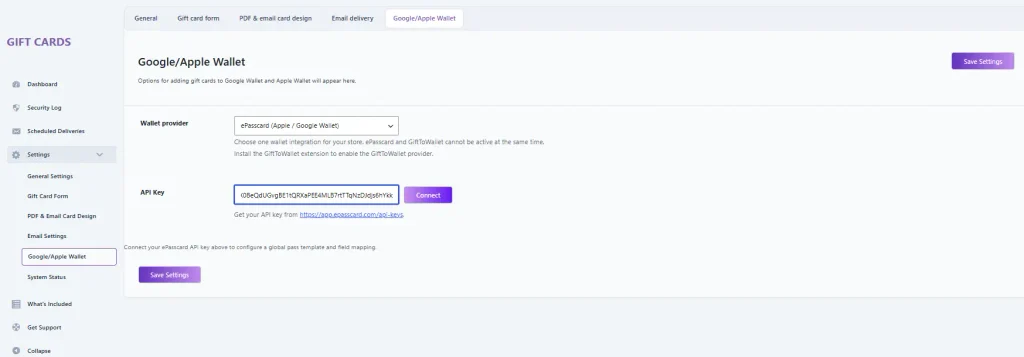
Step 4. Configure and Map the Wallet Pass Fields
Open your ePasscard dashboard and navigate to Templates → Pass templates. The template editor lets you customize the appearance of your digital gift cards for Apple Wallet and Google Wallet.
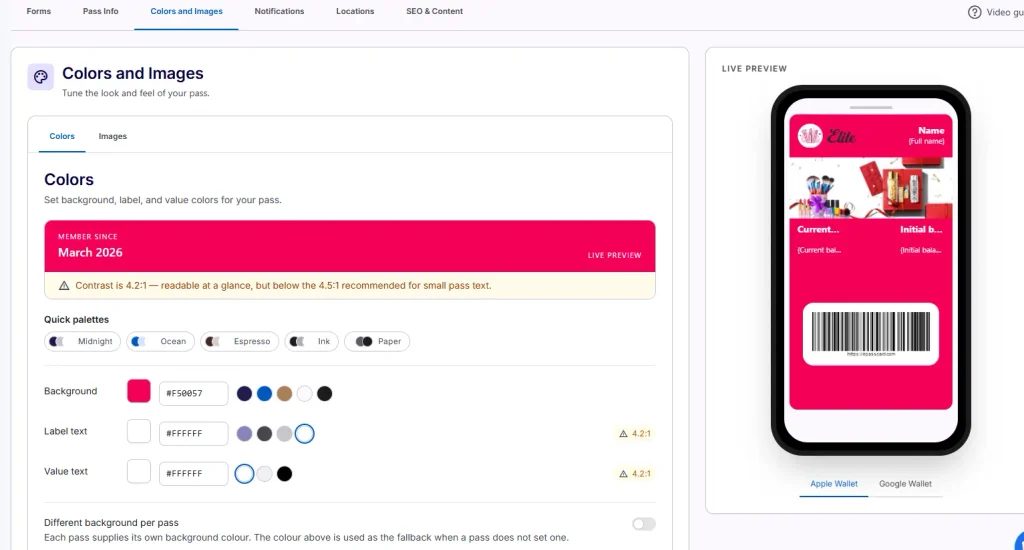
Under Forms → Fields, configure the additional properties required for your gift cards, such as the recipient’s name, current balance, initial balance, gift card number, and email address.
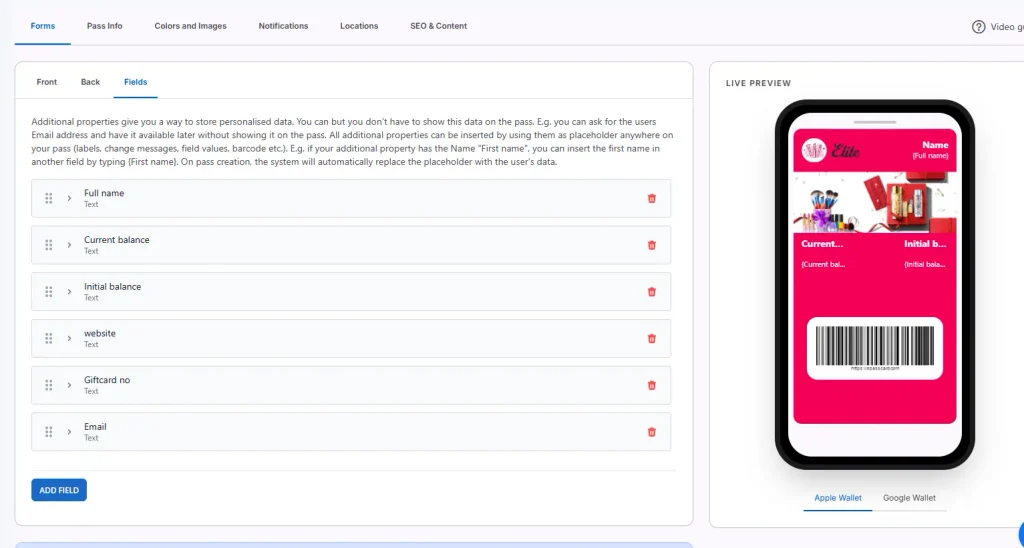
These properties can be referenced using placeholders throughout the pass. You can also customize the card artwork, colors, barcode, and other display elements using the available template settings.
Before publishing, confirm that the fields required by your GiftRocket integration are correctly mapped to the data supplied when a gift card pass is issued.
Step 5. Save and Verify the Wallet Configuration
Review your wallet settings carefully before exiting the dashboard. Click Save Settings at the bottom of the configuration screen. A successful connection confirms three essential milestones:
Wallet Provider Selected → API Connected → Settings Saved
Check that the green “Connected successfully” message appears beneath the API Key field. This confirms that GiftRocket has successfully established its API connection with ePasscard.
Your wallet provider configuration is now saved. Before going live, verify your pass template and test the complete gift card issuance process.
The next step is creating the WooCommerce gift card that customers will actually buy.
How to Create a Wallet-Ready Gift Card Product?
With your wallet tools connected using EpassCard, you can now build the actual gift product with GiftRocket. You only need to add a new WooCommerce product and set its gift values.
1. Create the Gift Card Product
Open your WordPress admin and click Products, then choose Add New. Enter an exciting title for your new WooCommerce product. Scroll down to the Product Data settings box.
Select the Gift Card option created by GiftRocket. This dedicated setting unlocks every mobile wallet feature. Your new gift card product is now properly configured. You can now add values that shoppers will love to buy.
2. Set the Gift Card Value and Personalization
Now you can shape the joyful experience for your shoppers. Set popular preset amounts like $25, $50, or $100. You can also allow a flexible custom amount for buyers.
Next, enable the buyer personalization fields on the page. The gift card sender enters their name and a sweet personal message. They enter the email address of the lucky gift card recipient. Customers can also pick a vibrant card design for any celebration. These personal touches turn a simple voucher into a warm surprise. Buyers feel proud to send such a customized present.
3. Configure Delivery and Publish the Gift Card
Select digital delivery to send the voucher through automated email delivery. Shoppers can deliver cards immediately or choose scheduled delivery for special dates.
Every gift card email includes a downloadable PDF gift card. It also displays the fast Apple and Google Wallet pass links. Recipients tap these buttons to instantly save their digital gift card.
Review your settings and click the blue Publish button. Your gift card product is now live in your store. You are ready to test the complete customer journey.
What Customers See After Buying a Gift Card from Your Store
Once a gift card order is processed, GiftRocket can deliver the digital gift card to the recipient through email. Depending on the configured delivery settings, the recipient can receive the card immediately or at a scheduled time.
Here is how the wallet-ready gift card journey is designed to work:
- Customer buys and personalizes the gift card: The shopper selects a gift value, enters the recipient’s information, and adds a personal message.
- Recipient receives the gift card: Once the order and scheduled delivery requirements are fulfilled, GiftRocket sends the digital gift card to the recipient’s email address.
- Recipient opens the wallet option: With the ePasscard integration configured successfully, the recipient can access the available mobile wallet pass options.
- The card is stored in Apple Wallet or Google Wallet: The recipient adds the compatible gift card pass to their preferred mobile wallet for convenient access.
- Recipient uses the gift card when purchasing: The shopper uses the gift card number during WooCommerce checkout to redeem the available store credit.
When the recipient opens the configured wallet pass, important gift card information can appear directly on the screen. Depending on the selected template and field mapping, this may include the recipient’s name, gift card number, and available balance.
The pass can also contain a scannable barcode for gift card identification. For example, ePasscard supports a Code 128 barcode that can be configured using the gift card number.
This wallet-ready experience gives recipients a convenient place to store their digital gift cards, so they don’t have to repeatedly search through old emails. For WooCommerce store owners, it creates a more accessible digital gifting experience while keeping gift card management connected to their store.
How to Test the Full Gift Card Digital Wallet Experience
First impressions matter more than anything else in digital sales. You know your cards work when the wallet pass opens cleanly on your mobile screen. Store owners run this check to prevent unhappy buyers and stop failed payments early. Run through this quick checklist to confirm every detail before your official launch:
- Place a test gift card order: Complete a live WooCommerce test order from your store catalog.
- Verify the recipient email arrives: Check that the automated email delivery reaches the recipient’s inbox.
- Open the wallet link: Click the digital wallet button inside the delivery message.
- Add the pass to Apple Wallet or Google Wallet: Save the wallet pass straight into your personal smartphone wallet app.
- Confirm the expected card details appear: Check your store logo, initial funds, and the scannable QR code.
- Make a test redemption: Apply the code during a second checkout for a smooth gift card redemption.
- Verify the remaining balance where applicable: Confirm that the live gift card balance updates to show the correct remaining balance.
Always test both platforms separately on an actual iPhone and an Android phone. This double-check ensures every customer experiences flawless card redemption on their phone. You can now launch your wallet cards with complete peace of mind. Your digital gifting setup is verified, dependable, and ready for eager shoppers.
Make Your WooCommerce Gift Cards Wallet-Ready
A digital gift card only delivers real value when a shopper actually remembers to spend it. You now know how to build wallet-ready gift cards for Apple Wallet and Google Wallet.
GiftRocket brings gift card creation, delivery, the wallet-pass experience, and the WooCommerce redemption flow together in one setup. This simple switch keeps your store credits safe from crowded spam folders. When buyers carry your balance on their home screen, repeat store visits follow naturally.
Subscribe to the newsletter to get expert eCommerce tips that build strong customer loyalty. Follow the active development team on X and LinkedIn to receive highly valuable daily business updates. Join the WebCartisan community to share feedback, ask questions, and connect with other store owners.
Frequently Asked Questions
Can WooCommerce Gift Cards Work With Apple Wallet?
Yes, WooCommerce gift cards can work with Apple Wallet. However, default WooCommerce does not support this feature out of the box. Your store must use a dedicated plugin that generates certified .pkpass files.
Can WooCommerce Gift Cards Work With Google Wallet?
Yes, customers can save gift credits to Google Wallet with one tap. The system converts purchase data into an official Android wallet pass. Shoppers can open and view their balance without opening slow browser tabs.
Are Wallet Gift Cards the Same as Apple Pay or Google Pay?
No, wallet gift cards are different from Apple Pay and Google Pay. Apple Pay and Google Pay process payment transactions during online checkout. A wallet gift card simply stores your store credit for later redemption.
Can Customers Use a Gift Card More Than Once?
Yes, customers can use a single card across multiple orders. GiftRocket supports automatic partial redemption directly at checkout. The live gift card balance updates on the pass to show the remaining balance.
Do Store Owners Need an Apple Developer Account to Issue Passes?
No, you do not need an Apple Developer account. The ePasscard integration handles all pass signing and security certificates automatically. You can issue certified passes immediately without paying annual developer fees.