



 ChatGPT
 Claude
 Grok
 Gemini
 Perplexity
The short answer on how to sell gift cards in WooCommerce: you need a gift card product that issues a balance customers can spend, not a coupon code you create by hand. Install a gift card plugin, create a Gift Card product, set amounts, expiry and delivery, run a test purchase, and decide how you will handle refunds before the first real sale. The customer buys a card, the recipient gets a code by email, and the balance goes down as it is spent.
This guide shows how to sell gift cards on WooCommerce with the free GiftRocketWP plugin, written for store owners and freelancers who have no gift cards yet. Jump to the setup steps, the cart and checkout field settings, the refund section or the FAQ.
Tax and gift card rules differ by country and state, so check local rules before you set expiry, and ask a local professional how to treat unspent balances (the Gift Card product type has no tax status field). Nothing here is legal advice. The screens come from hands-on tests of versions 1.1.3 and 1.1.4; the test table says which check was done on which version.
Gift card vs coupon: what you are actually selling
Digital gift cards in WooCommerce are a stored balance, while a coupon is a discount rule. Many stores start by emailing a coupon code and calling it a gift card. It works until a customer spends only part of it, or asks for a refund. The two things are built differently.
| Gift card | Coupon | |
|---|---|---|
| What it is | A prepaid balance the customer buys | A discount you choose to offer |
| Spending | Spend some now, keep the rest on the card | Applies a discount to an order under the coupon’s rules |
| Remaining value | Stored on the card and reduced as it is spent | A discount rule, so there is no balance to carry over |
| Typical use | A gift for someone else, or paid store credit | A promotion, a make-good or a campaign |
If a customer pays for something and expects to keep any remaining balance, you want a gift card. If you are giving a discount, a coupon is the right tool. For ideas on running gift cards as a campaign, see these gift card promotion ideas.
Decide these things first
Settle these before you build the product.
| Decision | Options in the free plugin | What to think about |
|---|---|---|
| Amounts | Preset amounts, a custom amount, or both | Presets are quicker to choose. Custom amount limits are global, not per product. |
| Expiry | Per product: 1 month, 3 months (default), 6 months, 1 year, or a custom date | Expiry rules vary by country and state. |
| Delivery | Email at purchase, or on a date the buyer picks; PDF with an optional QR code or barcode | Email at purchase suits instant gifts, scheduling suits gifts bought ahead of a holiday, and the PDF is a download link on the thank-you page. |
| Recipient details | Show the recipient form, or use the billing or shipping address | The form lets the buyer name the recipient and add a message. |
| Wallet passes | Optional, through ePasscard (free for up to 50 live passes, then paid) | Off by default. If you turn them on, delivery changes (see step 8). |
| Who can redeem | Anyone with the code | Cards are not locked to one account, and guests can redeem them. |
| Refunds | Decide your policy before launch | Partial refunds and failed payments are covered below. |
How to sell gift cards in WooCommerce: setup steps (free plugin)
You need WordPress 6.5 or later, PHP 8.1 or later and WooCommerce installed and active. If WooCommerce is not active, version 1.1.4 shows a “WooCommerce first” setup screen with an Activate WooCommerce button instead of failing (checked on 1.1.4 only).
- Install and activate. Go to Plugins > Add New and search for “Wallet Ready Gift Cards for WooCommerce by GiftRocketWP” or its slug, wallet-ready-gift-cards-for-woocommerce, or use the WordPress.org plugin page. A top-level GiftRocketWP menu then appears in the admin sidebar (version 1.1.3 used an older, shorter name). Its Gift Cards screen holds the dashboard, and items marked PRO are Pro placeholders.
- Create the product. Go to Products > Add New, name the product, and choose Gift Card in the Product data dropdown instead of Simple product. Virtual is ticked by default, and the product has only a General tab of real settings, so there is no shipping tab to set up.
- Set the amounts. Tick Enable Variation Price, click Add Price once for each preset, and type the values, for example 25, 50 and 100. Tick Enable Manual Price if buyers may type their own amount.
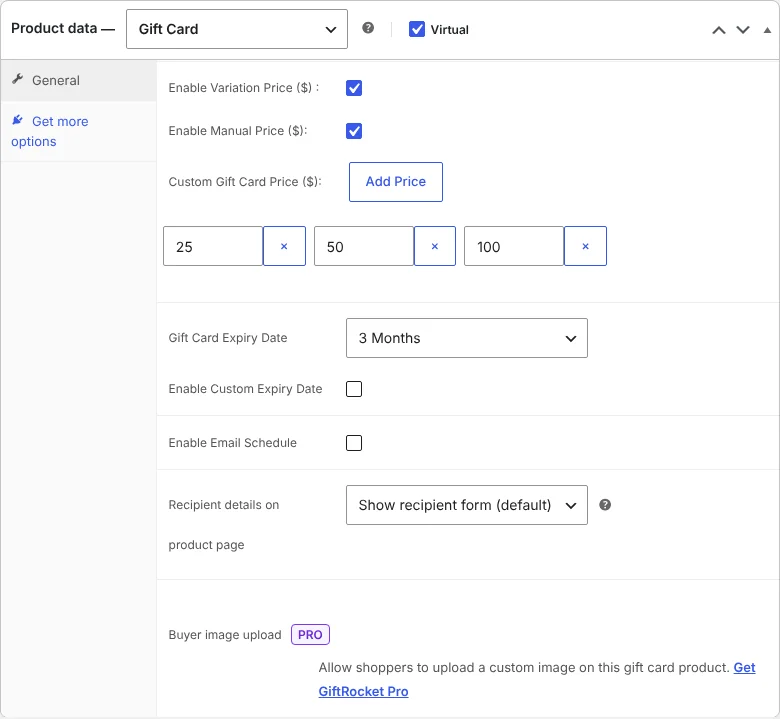
- Set the limits. The minimum and maximum for custom amounts live under GiftRocketWP > Settings > General Settings, in Limits & formatting (the defaults are 1 and 9990), so set them there, for example 10 and 200. The same section sets Maximum gift cards per purchase for a single add-to-cart (default 5).
- Choose expiry and delivery. On the same panel, pick the Gift Card Expiry Date (or tick Enable Custom Expiry Date) and tick Enable Email Schedule if buyers should be able to send a card later. Scheduling adds a Send At field to the product page, and leaving it blank sends the card right after purchase. Under Recipient details on product page you can show the recipient form or use the billing or shipping address at checkout.
- Check the buyer’s form. The product page shows the amount buttons, a custom amount field, a gallery of card designs, recipient name and email, a message with a character counter, and the sender’s name. The design gallery needs a product image and gallery images, so add them before you preview the page. In 1.1.4, line breaks in the message are kept on the thank-you page, the checkout summary and the PDF, so a multi-line note stays multi-line.
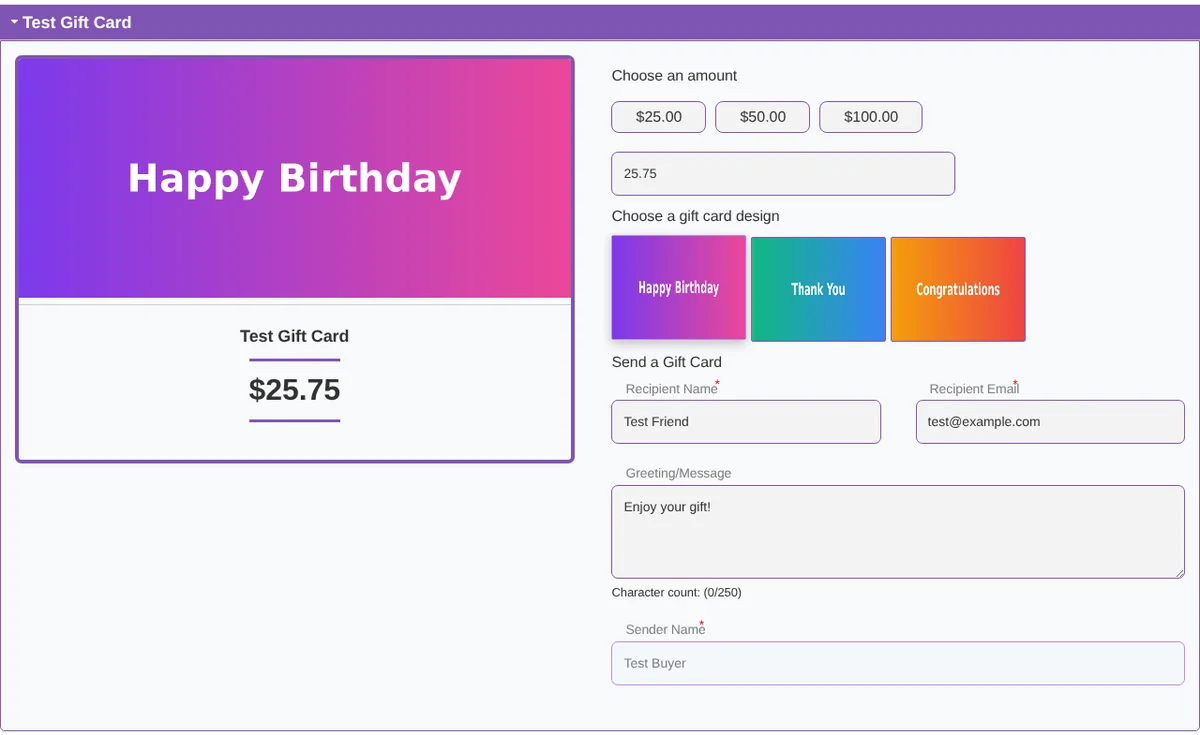
The custom amount box shows 25.75 only because that value was typed in for the test. On your store it starts empty, with the placeholder “($) Enter custom amount”.
- Choose the PDF and codes. Under GiftRocketWP > Settings, the PDF & email card design tab controls the card layout. The BarCode Settings section on the General tab has a Barcode, QR, or PDF417 on PDF option: none, a barcode of the card number, PDF417, a QR code, or a barcode plus QR code. A standard QR code links to the apply-at-checkout address. The thank-you page gives the buyer a Download PDF link.
- Optional: add wallet passes. The Google/Apple Wallet tab has a Wallet provider setting, which is None by default. Choosing ePasscard issues Apple Wallet and Google Wallet passes through your own ePasscard account and API key. ePasscard is free for up to 50 live passes and paid after that, so check their terms first. Skip this step if you only want email and PDF. Once a provider is active, delivery changes (see what changes when wallet passes are on). The Apple and Google Wallet setup guide covers the setup itself.
- Publish when the checklist passes. Keep the product as a draft or private, or work on a staging copy, until the checklist below passes. Then publish.
Test a purchase before you launch
Run this on a staging copy or in test payment mode, with a fresh browser session as a customer.
- Buy a card with an amount that includes cents, such as 25.75. Amounts follow WooCommerce’s “Number of decimals” setting, so the stored value should match what you paid.
- Find the new card in GiftRocketWP > Gift Cards. The dashboard lists the code, order, balance, redeem amount, expiry date, recipient and status, with Edit and Download PDF actions.
- Check the email and the PDF on a phone and a desktop. If an email does not arrive, the Email Status column on the Scheduled Deliveries page shows whether it went out, and a Re-send email action sits on the same page.
- If you use scheduling, set a time a few minutes ahead and confirm the email arrives.
- Redeem the card on the cart and on the checkout, using the cart type your store uses.
- Spend part of the balance and confirm the rest stays on the card.
- If you hide the gift card field, open a card link or scan the PDF’s QR code and confirm the card still applies.
- Log in as the customer and open My Account > Gift cards.
- Create an order in the admin and apply a card to it. The readme lists this as supported; we did not test it.
- Run one partial refund and one failed payment (see the refund section).
Redeem on Cart and Checkout Blocks
On the block cart and the block checkout, the order summary shows a button, Have a gift card code? Use it here. Click it, enter the code in the field that appears, and press Apply. The summary then lists the applied card with a remove button and adds a Gift card used line, and the total drops by that amount.
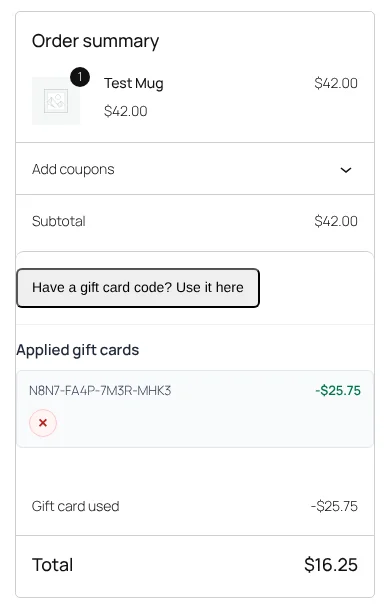
The screenshot crops to the order summary column of a test checkout (version 1.1.3), which is why it is narrow. In the test, a $25.75 card on a $42.00 item left a $16.25 total.
Gift card links and QR codes send the customer to the page you choose under GiftRocketWP > Settings > General Settings > Essential options, in the setting Page for “apply gift card” links and QR codes (Checkout or Cart; Checkout is the default).
Hide or show the gift card field on the cart or checkout
Version 1.1.4 added two separate switches under GiftRocketWP > Settings > General Settings > Essential options: Gift card field on cart page and Gift card field on checkout page. Both are on by default. In our test, all four on and off combinations hid or showed the “Have a gift card code?” field exactly as set, on both the block and the classic cart and checkout.
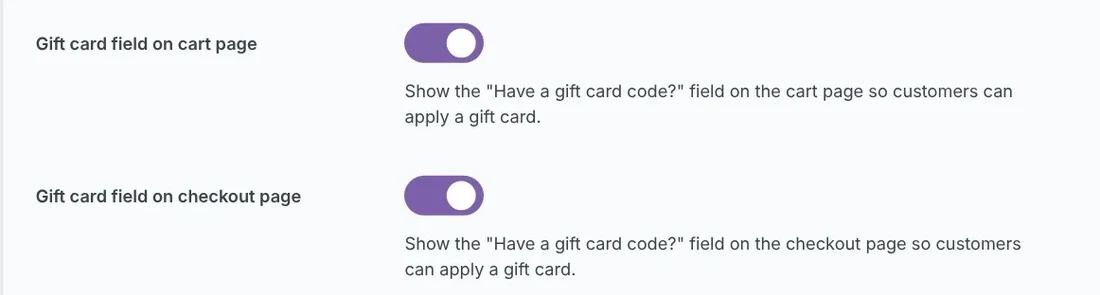
One caveat for classic stores: the classic behavior applied when the shortcode pages were the ones set as the Cart and Checkout pages in WooCommerce. A classic shortcode page that is not the configured page, on a store whose configured page is a block page, showed no field at all in our test.
Hiding the field does not switch gift cards off. With both switches off, a link such as /checkout/?wallregi_apply_giftcard=CODE still applied the card and showed “Gift card applied successfully.” Applied cards stayed visible and removable in the order summary, the total dropped, and the order completed. That is also the route the QR code on the PDF takes.
What changes when wallet passes are on
With the wallet provider on None, nothing here applies. With ePasscard (or the GiftToWallet add-on) active, version 1.1.4 holds the card email, and with Pro the SMS, until the wallet pass exists. Scheduled Deliveries then shows “Waiting for wallet pass” (ePasscard: free for up to 50 live passes, then paid). If pass creation fails it retries up to 3 times, 5 minutes apart, and the email is not sent without a pass until one exists or you use Generate pass on the dashboard. No admin notice appears, so check Scheduled Deliveries after launch. The PDF can also carry a QR code that links to the pass (again, ePasscard: free for up to 50 live passes, then paid), and a card with no pass yet gets the apply link instead. We checked this by reading the code and by a simulation, not with a live ePasscard call. Details are in the release notes for 1.1.4.
Common mistakes when you first sell gift cards
- Previewing the product with no images. The design gallery needs a product image and gallery images. Without them our test page showed a broken “Gallery Image” icon.
- Looking for amount limits on the product. The minimum and maximum for custom amounts are global, under Limits & formatting, not per product.
- Using a classic page that is not the configured one. On a classic store, the field logic followed the pages set as Cart and Checkout in WooCommerce. A classic shortcode page that was not the configured page showed no field in our test.
- Switching on wallet passes and walking away. With a provider, an API key and a pass template, the email waits for the pass, and a stuck card raises no admin notice. Check Scheduled Deliveries for “Waiting for wallet pass”.
- Testing refunds on SQLite. Restore to gift card failed on a SQLite site such as WordPress Playground and worked on MariaDB, so test refunds on a MySQL or MariaDB staging copy.
- Treating a card as tied to a customer. Cards are not locked to one account, so whoever holds the code can redeem it.
WooCommerce gift card refund: partial refunds and failed payments
A refund gets tricky when an order was paid partly with a gift card and partly with something else. WooCommerce’s own refund panel only reaches the payment gateway, so a card payment needs a second step. Two behaviors matter, and both are described in the GiftRocketWP 1.1.3 release post. If you are updating an older install, back up your site first, as you would before any plugin update.
Partial refunds. Open the paid order. In the Items box, under the gift card heading (the exact title text differs between versions), you will see the card, an amount field and a Restore to gift card button. Enter the amount to give back, click the button and confirm. The plugin warns that this credits the card right away and cannot be undone from the order screen, then shows Already given back with the total. In a test order, giving back 10 raised the card balance by 10 and returned a used card to Active. On a SQLite test site such as WordPress Playground, the button failed with “Another change to this order is in progress”; it worked on MariaDB (see the mistakes above).
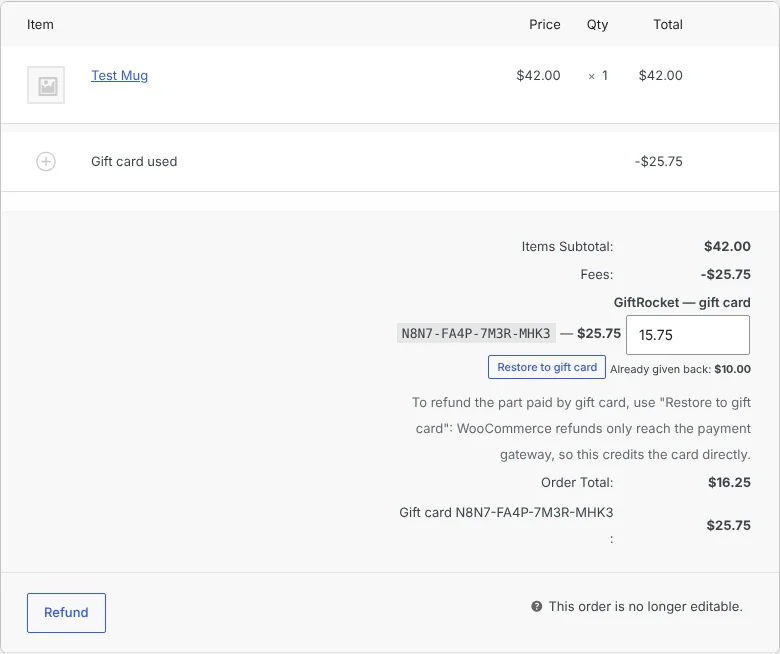
The screenshot is a 1.1.3 capture, so its heading text is older than 1.1.4 wording. Look at the gift card block and the “Already given back” line. The other rows are the order’s own totals.
Failed payments. If payment fails after a card has been applied, the gift card amount stays reserved so the customer can retry. The default is 24 hours, and you can change it under General Settings > Limits & formatting, in Release gift card balance after a failed payment (hours). If the order is still unpaid when the time is up, it is cancelled and the amount goes back to the card. According to the release post, the customer can retry within that window without losing the reserved amount. We found the setting and its default on a test store but did not run the timing.
Before launch:
- Write down your refund policy for gift card purchases and for orders paid with a gift card. They are two separate questions.
- Test a full refund and a cancelled order, and note what happens to the balance. The release post describes only partial refunds and failed payments, and this guide did not test refunding the purchase of a gift card itself, so check those cases on your own site rather than assuming.
- Test a failed payment with a payment method you can make fail, then retry and confirm the reservation and the final balance.
Manage balances after launch
Once cards are selling, you mostly need to answer two questions: who holds a balance, and how much is outstanding?
- Dashboard. Filter by All, Active, Used, Expired or Cancelled, copy a code, edit a card or create one by hand with Create Giftcard. A Security Log page records activity.
- Customers. Logged-in customers see their cards under My Account > Gift cards, including PDF downloads and wallet pass links when they exist (wallet passes are optional; see step 8).
- Fraud protection. Rate limits and security logging are included.
- Existing cards. If you already sold gift cards some other way, GiftRocketWP > Import / migrate (CSV) imports up to 500 rows per file in the free version, with a sample CSV and a validation step.
- Outstanding balances. Exporting a report of unspent balances is a Pro feature. In the free version you work from the dashboard.
Free vs Pro: what you need for a first launch
For a first launch, the free plugin covers the product type, preset and custom amounts, scheduled email delivery, PDF cards with QR code and barcode, redemption on classic and Blocks cart and checkout, gift cards on admin-created orders, per-product expiry, the dashboard, a security log and rate limits (per the readme; we did not test admin-created orders or expiry). The table lists only where Pro differs. Pro was not part of our hands-on test, so the Pro column follows the plugin readme and the Pro changelog. To set up delivery dates, see how to schedule gift card delivery in WooCommerce.
| Need | Free | Pro |
|---|---|---|
| CSV import | Up to 500 rows per file | Up to 5,000 rows |
| Buyer picks how much of a card to apply to an order | Pro feature per the readme | Yes |
| Top-up or reload | No | Yes |
| Bonus value (“pay 50, get 55”) | Developer filter only | Tiers set per product |
| Export of outstanding balances | No | Yes |
| Expiry reminder emails | No | Yes |
| SMS delivery (needs your own Twilio account) | No | Yes |
Bonus value. According to its changelog, Pro 1.0.7 adds bonus value tiers set per product (a percentage or a fixed amount, with optional dates), so a buyer can pay 50 and receive a card worth 55. It needs the free plugin at 1.1.4 or newer, and we did not test it. Pro 1.0.7 also brings SMS delivery into Pro and fixed-amount top-up bonuses. On the free side, 1.1.4 added a developer filter, wallregi_issue_giftcard_bonus_amount: in our test, a snippet returning 5 turned a $50 card into a 55.00 balance while the buyer paid $50.00. The 1.1.4 release post covers the release, and the full features comparison lists the rest.
How to compare a WooCommerce gift card plugin
Judge each option on the same checks: Blocks redemption, refunds, expiry and how it reports balances. For context, the free version of PW WooCommerce Gift Cards also supports Blocks and shows liability. The official WooCommerce Gift Cards extension supports digital gift cards only and depends on Action Scheduler, according to its documentation, and its compatibility page lists supported integrations. Run the same test checklist on any plugin you shortlist. If you are weighing store credit instead, read gift card vs store credit in WooCommerce.
What we tested and what we did not
Tests ran on local WordPress and WooCommerce stores, with no real mail delivery and no live wallet calls. The screenshots in steps 3 and 6 and in the refund section are from 1.1.3.
| Item | Version checked | Result |
|---|---|---|
| Product type, amounts, buyer form, thank-you page, dashboard, My Account tab, CSV page | 1.1.3 | Checked; screens match the steps above |
| Block cart and checkout redemption by typing a code | 1.1.3 | Checked |
| Restore to gift card (partial refund) | 1.1.3 | Checked on MariaDB |
| Failed-payment release setting and default | 1.1.3 | Setting found; timing not run |
| Menu name GiftRocketWP, cart and checkout field switches, apply links, WooCommerce-inactive screen | 1.1.4 | Checked, block and classic |
| Wallet wait, retries, QR wallet link | 1.1.4 | Code reading and simulation; no live ePasscard call |
| Message line breaks | 1.1.4 | Checked on thank-you page, checkout summary, PDF and order email |
| Scheduled-date parsing with a non-default date format | 1.1.3 and 1.1.4 | Function-level test only; the date picker was not used |
| Applying a card to an admin-created order, real email delivery, scheduled sends through the date picker, expiry, refunding a gift card purchase | Any | Not tested |
| Anything in Pro | n/a | Not tested; described from the changelog |
If your site uses a day-first date format such as d/m/Y, use 1.1.4 or later, whose changelog fixes date-format parsing (we confirmed this at function level only). We did not re-run the product setup screens, the Restore to gift card control or the Limits & formatting settings on 1.1.4. The 1.1.4 changelog does not list changes to them, but that is an inference, so confirm them on your own store.
FAQ
How do I hide the gift card field on the cart but keep it on the checkout?
Switch off Gift card field on cart page and leave Gift card field on checkout page on, under Essential options in 1.1.4 (or the reverse). The two switches are independent, and a card can still be applied through an apply link or the QR code on the PDF.
What happens if the gift card email does not arrive?
Open Scheduled Deliveries and check the Email Status column. In a local test where the server could not send mail, the card showed “Failed”. The Re-send email action is on the same page, and you can still download the card’s PDF from the dashboard and send it yourself. If wallet passes are on, the status may instead read “Waiting for wallet pass”.
Do I need ePasscard or wallet passes to sell gift cards?
No. The wallet provider is None by default, and email and PDF delivery work without it. Passes are optional, and ePasscard is free for up to 50 live passes and paid after that.
Can I add a bonus, such as pay 50 and get 55?
Yes. The free plugin has a developer filter that adds a bonus to each issued card, which needs a code snippet, and Pro 1.0.7 adds bonus tiers per product according to its changelog. We did not test Pro.
How many gift cards can one customer buy at a time?
Up to 5 in a single add-to-cart by default. Change it under General Settings > Limits & formatting, in Maximum gift cards per purchase.
Can I skip the recipient form?
Yes. Under Recipient details on product page, choose to hide the form and use the billing or shipping address at checkout. We did not test what the email then says or who it reaches, so run a test purchase first.
Does a customer need an account to buy or redeem?
No. Our test purchase was made as a guest, and the plugin readme describes guest-friendly redemption. Cards are not locked to one customer account.
How to sell gift cards in WooCommerce without a plugin?
Gift cards come from an extension or a plugin, such as the official Gift Cards extension or the free GiftRocketWP plugin. A hand-made coupon code does not track a purchased balance.
Try it on your store
If you are still deciding how to sell gift cards in WooCommerce, install the free GiftRocketWP plugin from WordPress.org, then try the live demo to see the buying and redeeming flow first. If you want the product overview, the WooCommerce gift card plugin page explains how the pieces fit together.
Want the sender name on each card to come from the billing name, one custom name or none? See how to set the WooCommerce gift card sender name.