

Customers can upload their own photo for the card, then crop it to fit.
Turning Photo Uploads On
- Go to GiftRocket > Settings > General Settings.
- Turn on Enable Custom Image / Photo Upload.
- Set Max Custom Image Size (MB) (default 5 MB).
- Choose a Custom Image Crop Aspect Ratio:
- 4:3 (Standard Gift Card – Recommended)
- 16:9 (Widescreen)
- 3:2 (Classic Photo)
- 1:1 (Square)
- Click Save Settings.
What Customers See
- Under the designs, customers click Choose File and pick a PNG, JPG, GIF or WEBP image.
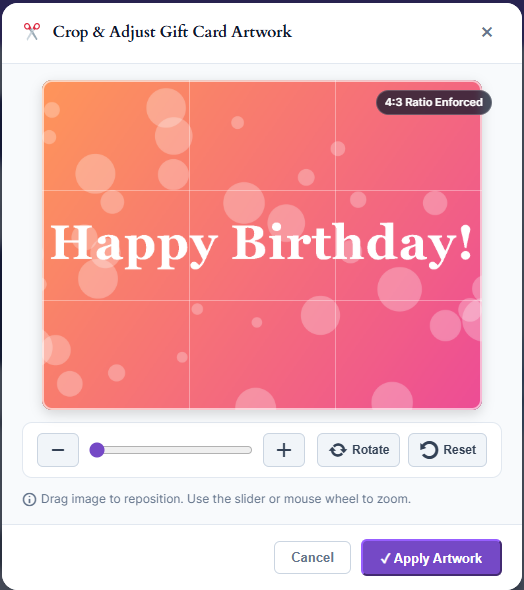
- The Crop & Adjust Gift Card Artwork window opens. They can drag to reposition, zoom, rotate or reset.
- They click Apply Artwork. The photo appears on the card preview.
- Later they can click Edit / Crop to adjust it, or Remove to go back to the designs.
Note: Customers must be logged in to upload a photo. Guests see a Log In to Upload button instead. This stops anonymous visitors from uploading files to your site.