

Decide whether customers send the gift card to someone else, and whether they can choose when it arrives.
Recipient Details
In the product’s 🎁 Gift Card tab, under Recipient details on product page, choose:
| Option | What customers see |
|---|---|
| Optional recipient details | The recipient form shows, but customers can leave it empty to keep the card for themselves. |
| Always show recipient form on product page | Customers enter the recipient’s name and email for every card. |
| Hide form — use billing address at checkout | No recipient form. The card is sent to the buyer’s billing email. |

Scheduled Delivery
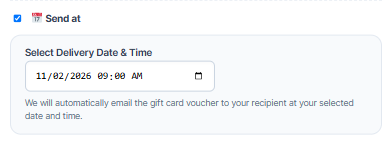
Turn on Enable Email Schedule to let customers pick a future date and time for the gift card email. On the product page they’ll see a Send at option.
- If they leave Send at unticked, the card is emailed as soon as the order is paid.
- If they tick it and pick a date and time, the card waits in GiftRocket > Scheduled Deliveries until then.
Tip: Scheduled emails are checked every few minutes. See 6.4 Making Scheduled Emails Arrive on Time for low-traffic sites.