

Card designs come from the product’s own images, so each gift card product can have its own set of designs.
How Designs Work
- The product’s featured image becomes the first design (Style 1) and is selected by default.
- Each gallery image becomes another design (Style 2, Style 3 and so on).
- If the product has no images, GiftRocket shows its built-in designs: Father’s Day, Mother’s Day, Gift Card Pink, Happy Birthday and Valentine’s Day.
Adding Designs
- Go to FluentCart > Products and edit your gift card product.
- Set the featured image to your main card design.
- Add more designs to the product gallery.
- Save the product.

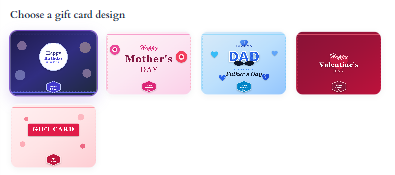
Tip: Use images with a 4:3 ratio (for example 1200 × 900 px) so they fit the card frame without cropping.
Changing the Design Heading
The heading above the designs is set in GiftRocket > Settings > General Settings > Essential options > Gallery label text (default: Choose a gift card design).