

Customers choose from the amounts you set on the product, or type their own amount.
Preset Amounts
- Open the product’s 🎁 Gift Card tab.
- Under Custom Gift Card Price ($), enter an amount.
- Click + Add Price to add more amounts. Click Remove to delete one.
- Click Save Gift Card Settings.
Each amount shows as a button on the product page.

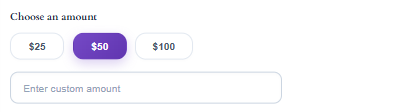
Custom Amounts
Below the preset buttons, customers can type their own amount. You control the limits store-wide:
- Go to GiftRocket > Settings > General Settings.
- Open Limits & formatting.
- Set Custom price minimum value ($) and Custom price maximum value ($).
- Click Save Settings.
If a customer types an amount outside these limits, they see a message such as “Minimum custom amount is $10”.
Maximum Gift Cards per Purchase
In the same Limits & formatting section, Maximum gift cards per purchase sets the highest quantity a customer can add to the cart in one go.
Changing the Amount Labels
In GiftRocket > Settings > General Settings > Essential options you can change:
- Custom Price Option Label – the heading above the amounts (default: Choose an amount).
- Manual Price Input Placeholder – the text inside the custom amount box (default: Enter custom amount).