

Change every label, button and error message on the gift card form to match your store’s voice.
Go to GiftRocket > Settings > Gift Card Form.
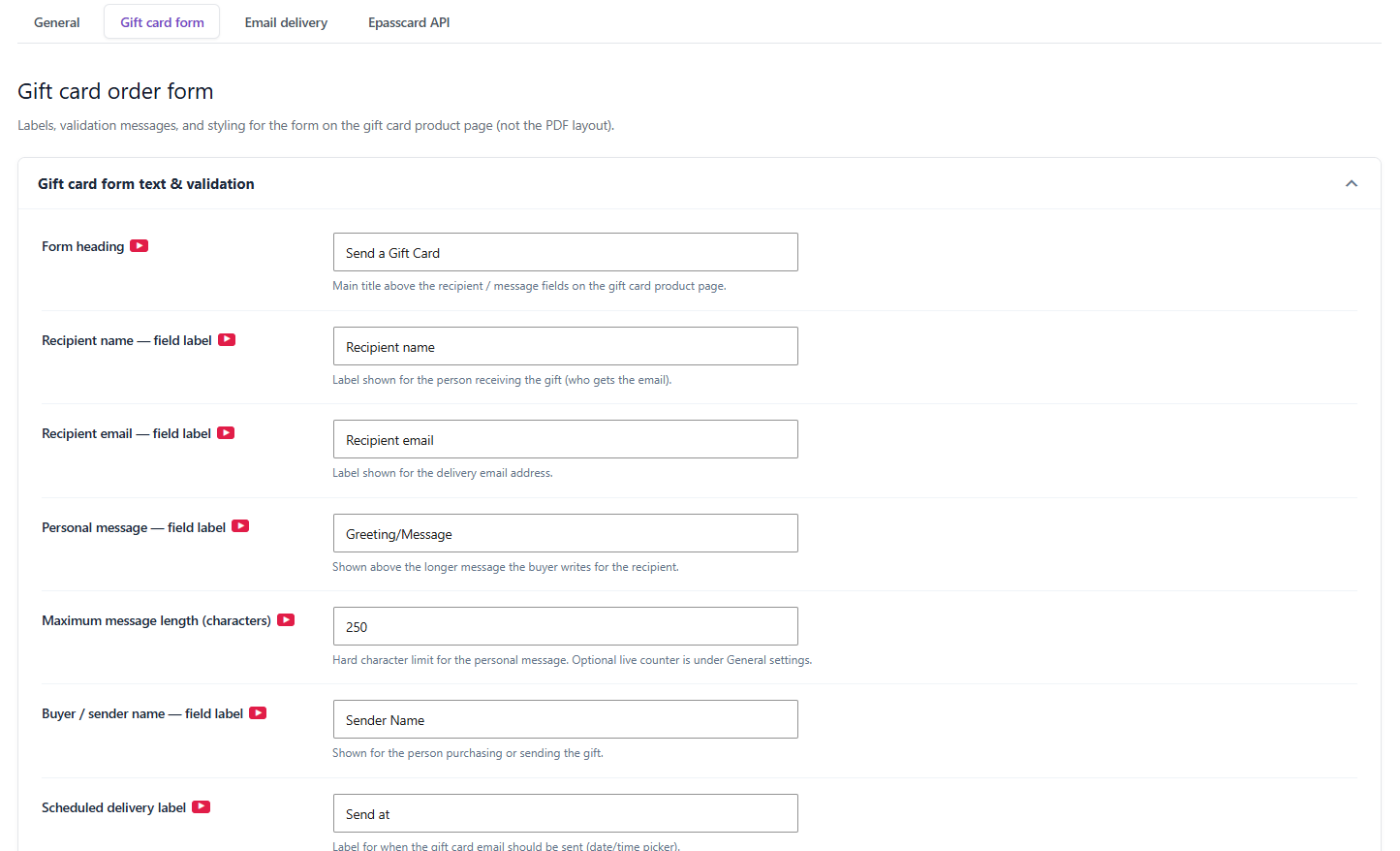
Field Labels
- Form heading – the title above the recipient and message fields.
- Recipient name — field label
- Recipient email — field label
- Personal message — field label
- Buyer / sender name — field label
- Scheduled delivery label – the label for the date and time picker.
- Add to cart button text
Message Length
Maximum message length (characters) sets a hard limit on the personal message. To show customers how many characters they’ve used, turn on Show live character counter for message field in General Settings.
Error and Success Messages
- Recipient name — empty error
- Recipient email — missing/invalid error
- Invalid email error message
- Sender name — empty error
- After add to cart — success message
Click Save Settings when you’re done.