

Once connected, choose how your gift card pass looks in Apple Wallet and Google Wallet.
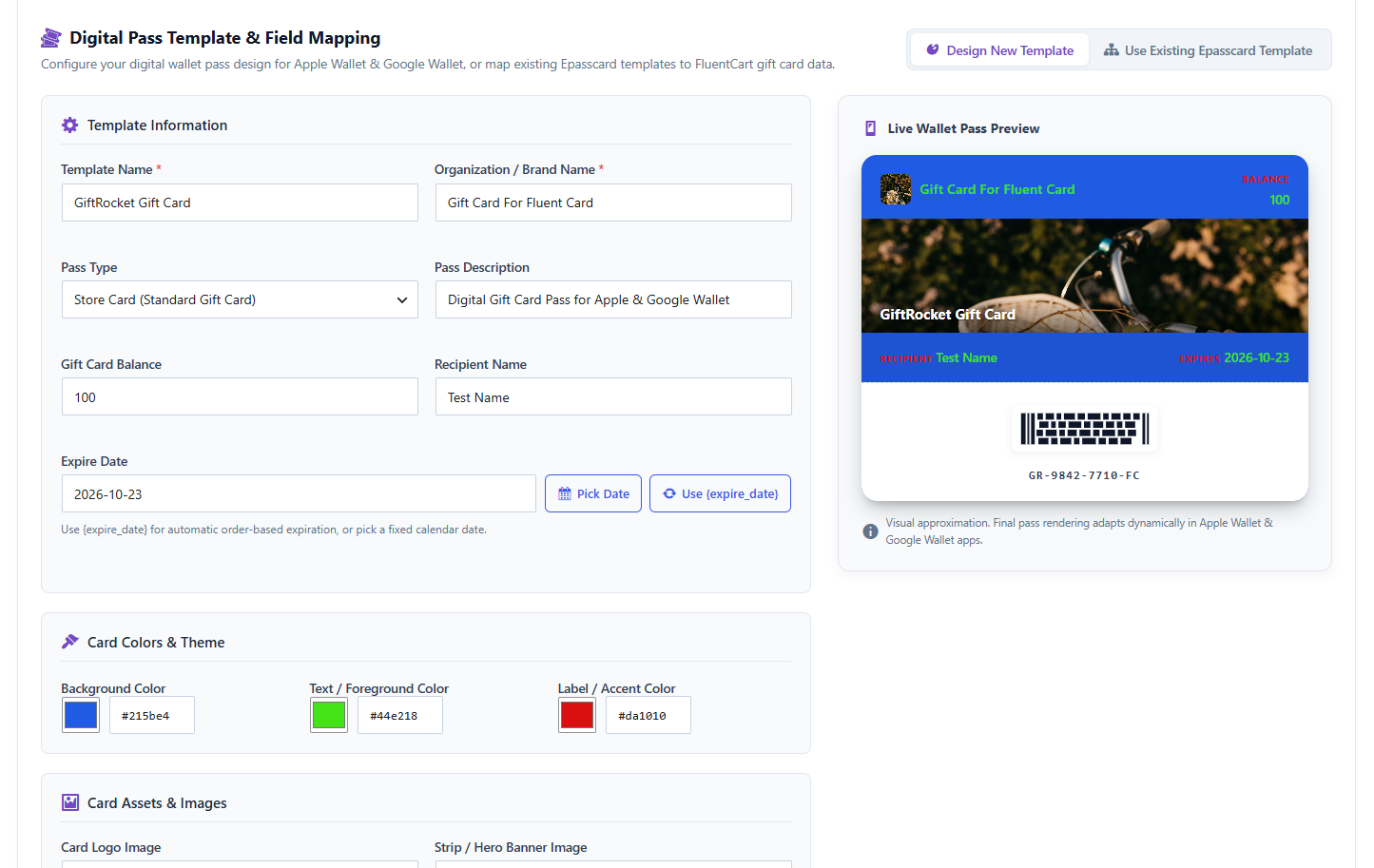
In the Digital Pass Template & Field Mapping section, choose:
- Design New Template – create a pass design in GiftRocket.
- Use Existing Epasscard Template – use a template you already made in ePassCard.
Designing a New Template
- Template Information – Template Name, Organization / Brand Name, Pass Type (Store Card, Coupon / Voucher or Generic Pass) and Pass Description.
- Expire Date – use
{expire_date}to use each card’s own expiry, or pick a fixed date. - Card Colors & Theme – Background Color, Text / Foreground Color and Label / Accent Color.
- Card Assets & Images – your Card Logo Image and a Strip / Hero Banner Image (around 1125 × 432 px).
- Barcode & QR Code Configuration – QR Code, Code 128, PDF417 or Aztec Code.
A Different Pass for One Product
By default, every gift card product uses the template from GiftRocket > Settings. To use a different one for a single product:
- Edit the product and open the 🎁 Gift Card tab.
- Click Digital Pass (Epasscard).
- Tick Use custom Digital Wallet Pass template for this product and set it up.
- Click Save Gift Card Settings.