

Scheduled delivery lets customers choose the date and time the gift card email reaches the recipient, so a birthday gift can arrive on the birthday.
How to Configure
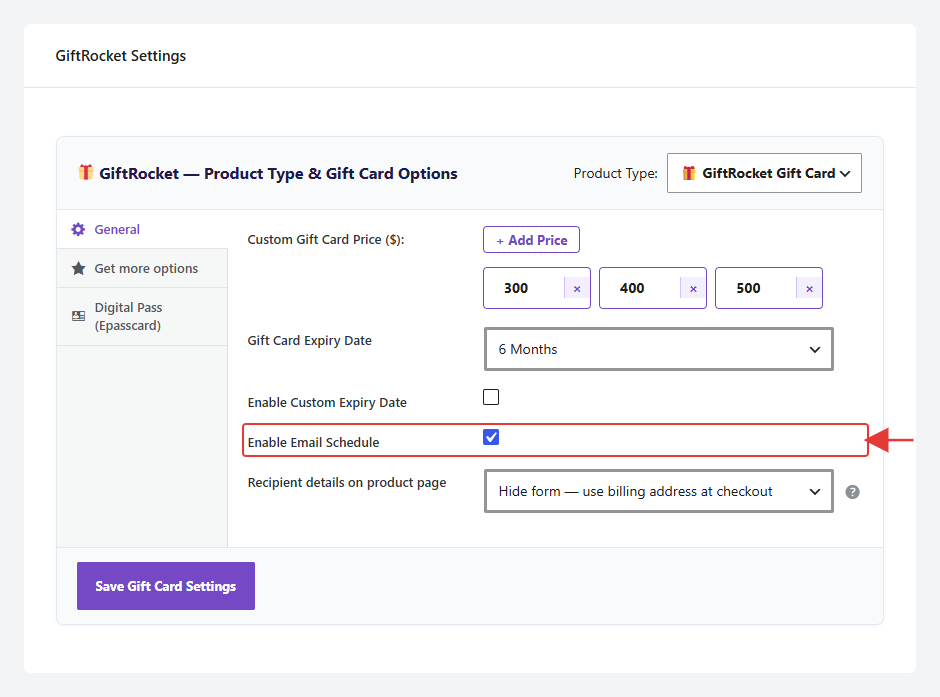
Step 1: Turn On Scheduling for the Product
- Open the product and go to GiftRocket Settings → General.
- Tick Enable Email Schedule.
- Click Save Gift Card Settings.
Step 2: How Customers Schedule a Card
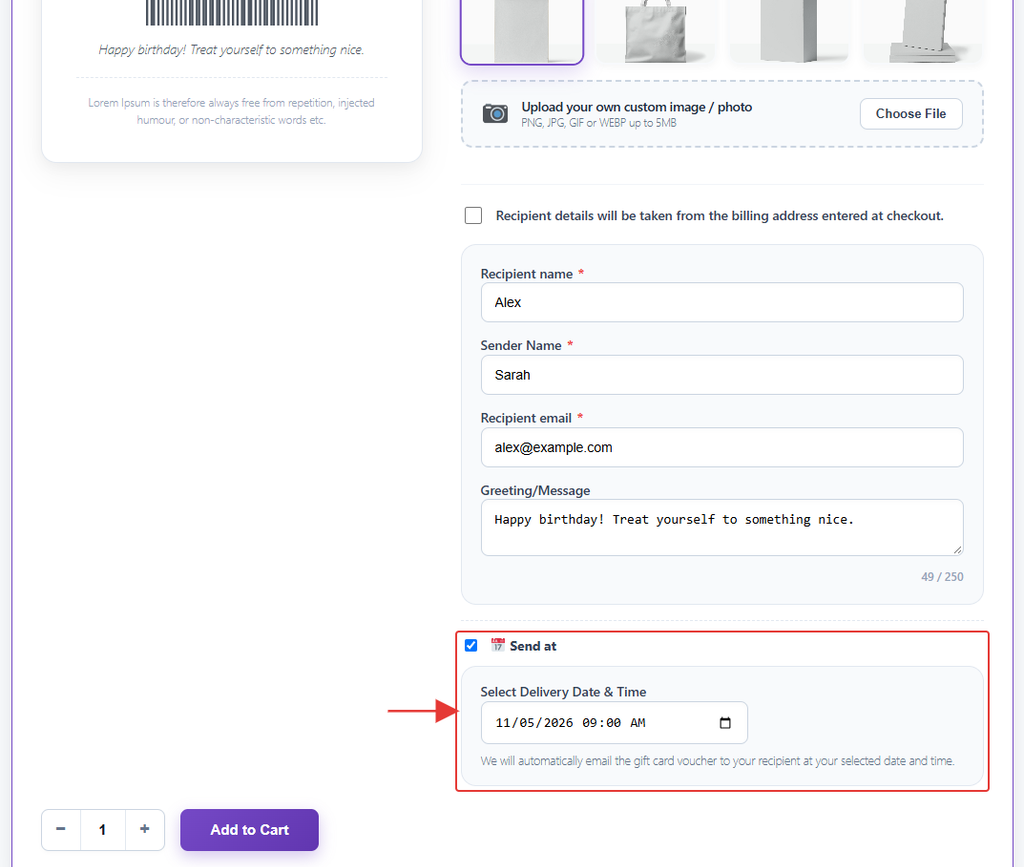
- On the product page, the customer ticks Send at.
- They choose a date and time under Select Delivery Date & Time.
- The gift card email is sent automatically at that time. Without a date, it is sent as soon as the order is paid.
Note: Scheduled emails use WordPress cron, which runs when your site gets visits. GiftRocket also checks every 5 minutes. On low-traffic sites, ask your host to set up a real server cron job so emails go out on time. You can see waiting emails under GiftRocket → Scheduled Deliveries.