

Any SureCart product can become a gift card. This quick start creates a product, switches it to a gift card and sets the amounts. Each setting is explained in full in section 2.
How to Configure
Step 1: Create a SureCart Product
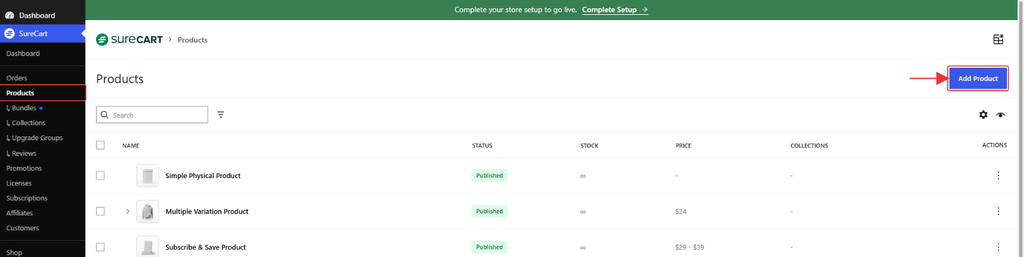
- Go to SureCart → Products.
- Click Add Product.
- Enter a name, for example Store Gift Card, add an image and publish the product.
Step 2: Switch It to a Gift Card
- On the product edit screen, scroll down to the GiftRocket Settings card.
- Set Product Type to GiftRocket Gift Card.
- Add your amounts with + Add Price (see 2.2).
- Click Save Gift Card Settings.
Step 3: Check the Product Page
- Open the product on your site.
- You should see the card preview, the amount buttons and the design picker.