

Move gift cards in from another system with a CSV file, or export all your cards for your accountant.
How to Import Gift Cards
Step 1: Prepare Your CSV File
Put the column names in the first row. GiftRocket reads these columns:
| Column | Required | Notes |
|---|---|---|
code | No | Leave blank to generate a code automatically |
amount | Yes | The card’s value. The balance starts at the same amount |
currency | No | For example USD. Defaults to USD |
expire_date | No | Format YYYY-MM-DD |
recipient_name | No | |
recipient_email | No | |
status | No | For example active |
code,amount,currency,expire_date,recipient_name,recipient_email
,50,USD,2027-12-31,Alex Rivera,alex@example.com
Step 2: Upload the File
- Go to GiftRocket → Dashboard and click Import CSV.
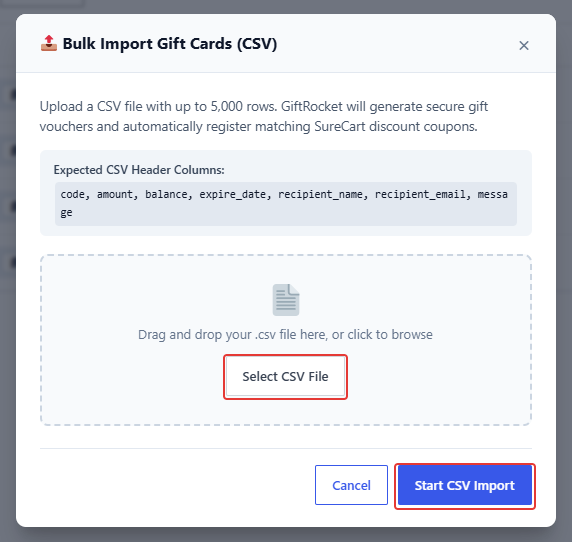
- Click Select CSV File and choose your file (up to 5,000 rows).
- Click Start CSV Import.
Note: Imported cards are not emailed to recipients. Use the resend icon (see 5.4) if you want to send them. If a code in the file already exists, that card is replaced.
How to Export Gift Cards
- Go to GiftRocket → Dashboard.
- Click Export Liability CSV. A CSV file downloads.
The file lists every card with its code, product, initial amount, redeemed amount, Outstanding Balance (Liability), currency, status, recipient, order, expiry date and created date. The outstanding balance column is the total your store still owes on gift cards.