

Give customers a set of ready-made amounts to pick from. They can also type their own amount, within the minimum and maximum you set.
How to Configure
Step 1: Add Fixed Amounts
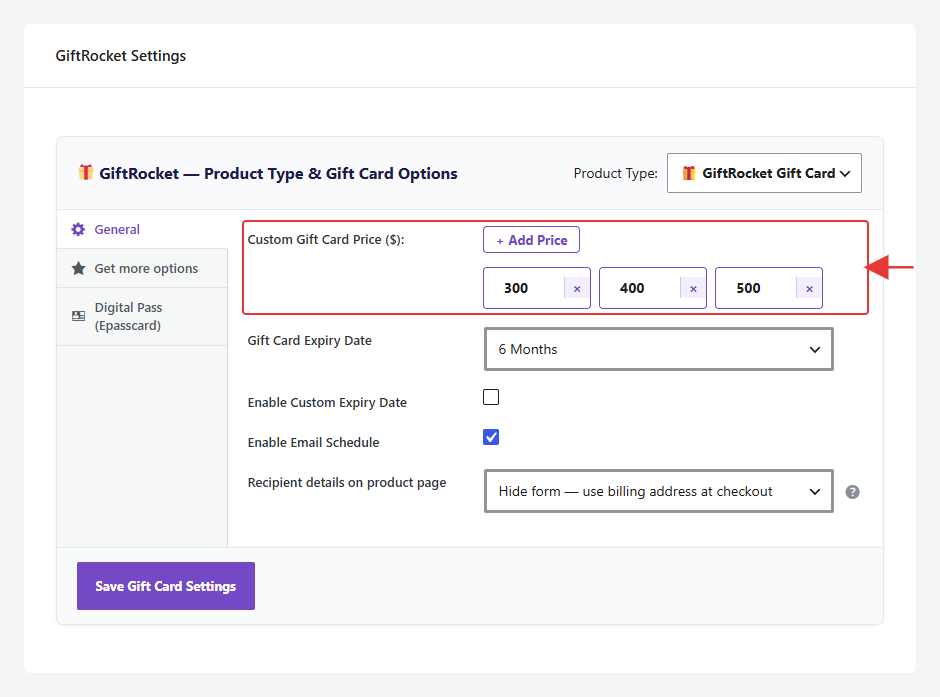
- Open the product and go to GiftRocket Settings → General.
- Under Custom Gift Card Price ($), click + Add Price.
- Type the amount, for example 50.
- Repeat for each amount you want to offer. Click the × on an amount to remove it.
- Click Save Gift Card Settings.
Step 2: Set Limits for Custom Amounts
The product page always shows an Enter custom amount box under the amount buttons. Set the lowest and highest amount a customer can type:
- Go to GiftRocket → Settings → General Settings.
- Set Custom price minimum value ($) and Custom price maximum value ($).
- Save your settings.
Note: The defaults are a minimum of $1 and a maximum of $9,990. Amounts outside your limits are rejected when the customer adds the card to the cart.