

Two store-wide settings control how gift cards appear in your shop and how many a customer can buy at once.
How to Configure
Step 1: Open Limits & Formatting
- Go to GiftRocket → Settings → General Settings.
- Open the Limits & formatting section.
Step 2: Change the Settings
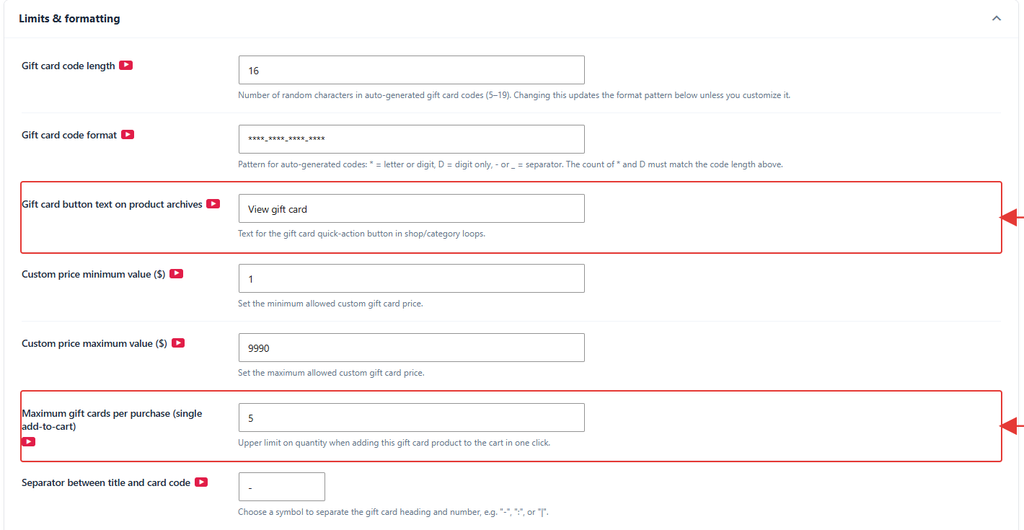
- Gift card button text on product archives: the button label on gift card products in your shop and category pages. The default is View gift card.
- Maximum gift cards per purchase (single add-to-cart): the highest quantity a customer can choose on the gift card page. The default is 5.
- Click Save Settings.
Note: When a customer buys more than one card at once, each card gets its own amount, design, recipient and delivery date on the product page.