

The designs customers choose from on the product page come from the product’s own images in SureCart. Add an image and it becomes a design choice.
How to Configure
Step 1: Add Images to the Product
- Go to SureCart → Products and open your gift card product.
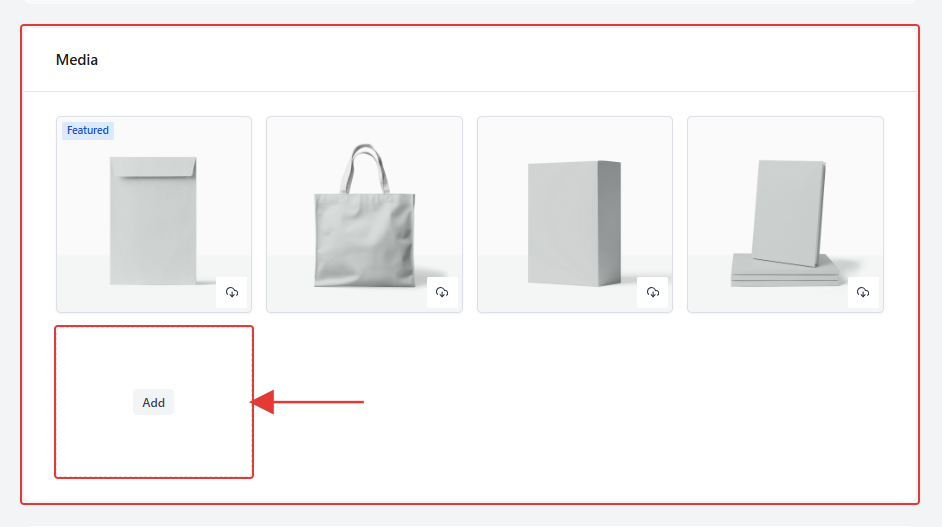
- Find the Media section.
- Click Add and choose or upload your design images.
- Click Save Product.
Step 2: Check the Product Page
Each image appears under Choose a gift card design. The image marked Featured is selected first and shown on the card preview.
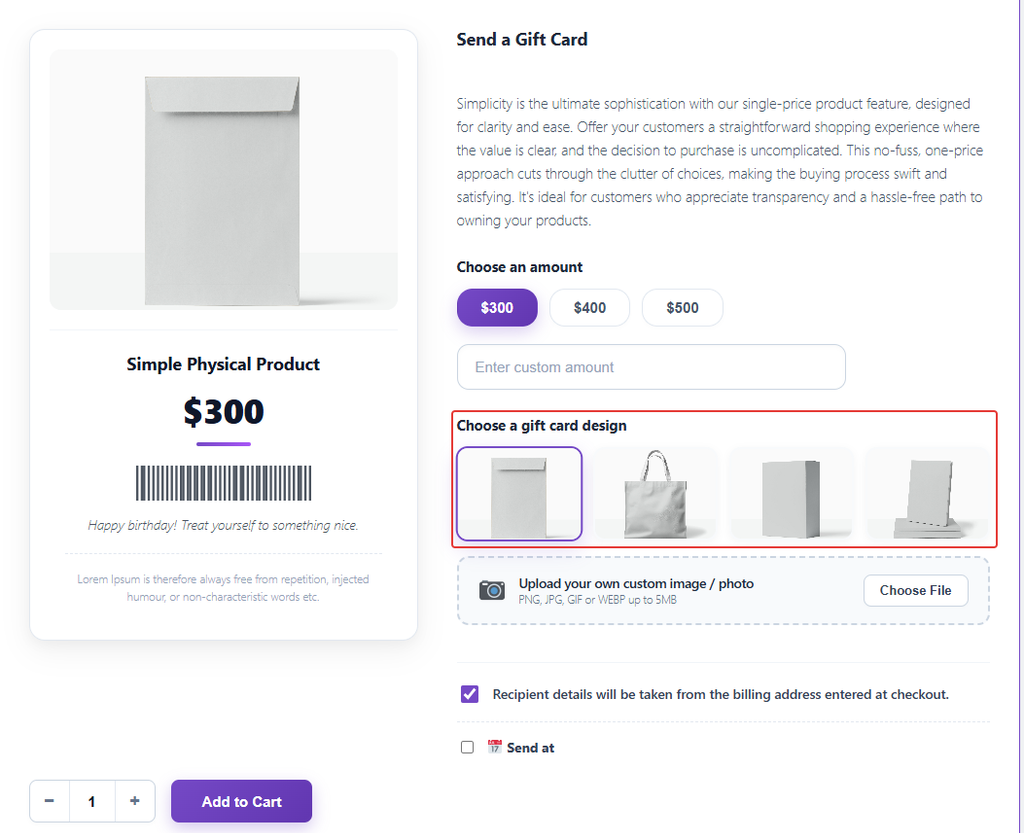
Note: Use landscape images with the main subject in the centre. Designs are shown in the card’s crop ratio, which is 4:3 unless you change it (see 3.2). If a product has no images at all, GiftRocket shows its five built-in designs instead.