

Choose how long a gift card stays valid after purchase. You can pick a preset period, set your own length, pick a fixed date, or let cards never expire.
How to Configure
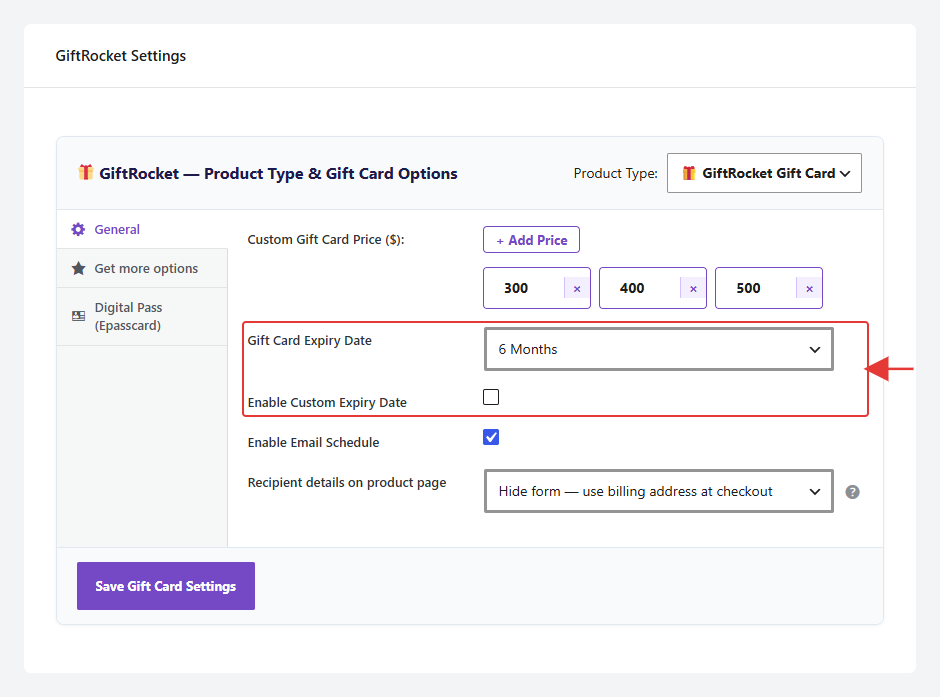
Step 1: Choose a Preset Period
- Open the product and go to GiftRocket Settings → General.
- Open Gift Card Expiry Date and choose No Expiry, 1 Month, 3 Months, 6 Months, 1 Year or 2 Years.
- Click Save Gift Card Settings.
Step 2: Use a Custom Length or Date (Optional)
- Tick Enable Custom Expiry Date.
- Enter an Expiry Value and choose an Expiry Duration (Days, Weeks, Months or Years). For example, 90 Days.
- Or leave those empty and pick a Manual Expiry Date so every card from this product ends on the same day.
- Click Save Gift Card Settings.
Note: The period is counted from the day the order is placed. A custom length overrides a manual date, and both override the preset period.