Decide whether customers enter the recipient’s name, email and a message on the product page, or whether GiftRocket uses the billing details from checkout.
How to Configure
Step 1: Choose How Recipient Details Are Collected
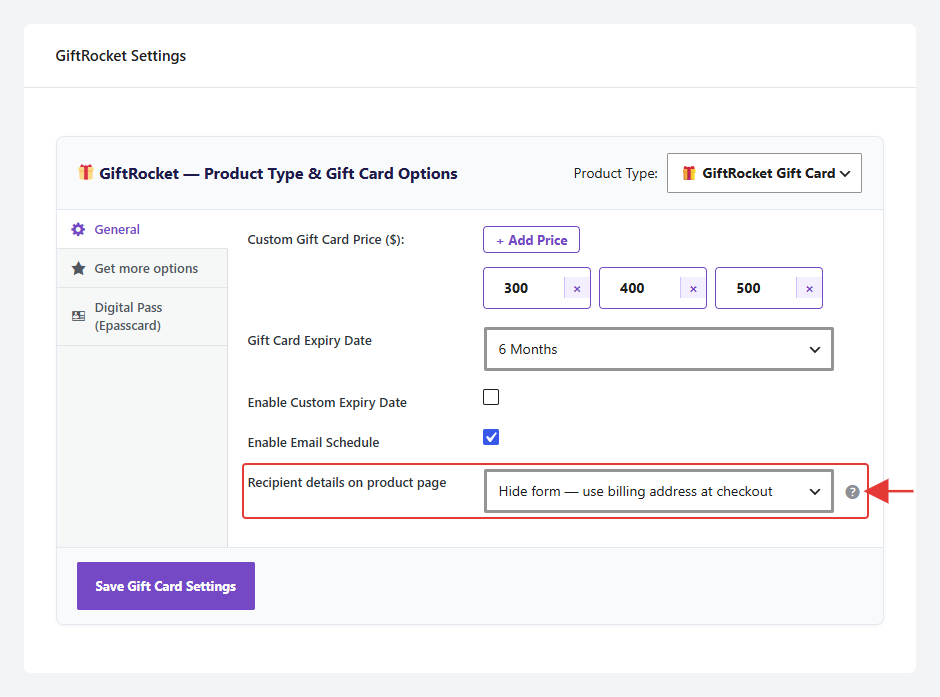
- Open the product and go to GiftRocket Settings → General.
- Open Recipient details on product page and choose one option:
- Hide form — use billing address at checkout: the card goes to the buyer. Best for customers buying for themselves.
- Always show recipient form on product page: the form is open when the page loads.
- Optional recipient details: the form is shown, and customers can switch back to their billing details.
- Click Save Gift Card Settings.
Step 2: What Customers Fill In
When the form is shown, customers enter Recipient name, Sender Name, Recipient email and an optional Greeting/Message of up to 250 characters. The message appears on the live card preview.
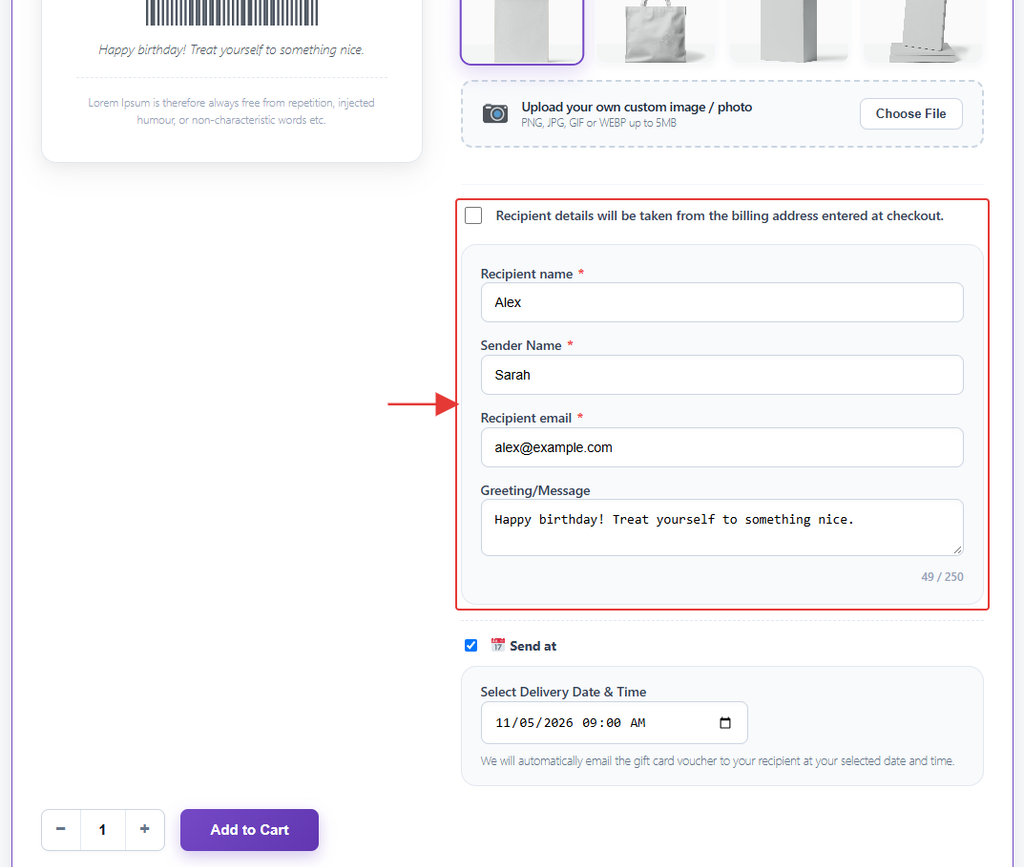
Note: Customers can always untick or tick Recipient details will be taken from the billing address entered at checkout to switch between the two.