

Every label, button and message on the gift card product page can be changed to match your store’s wording or language.
How to Configure
Step 1: Change the Form Labels
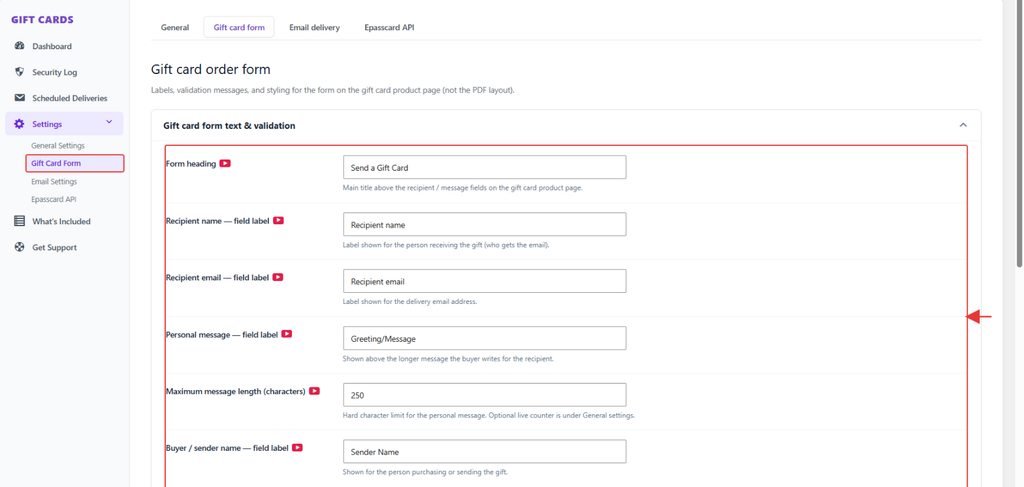
- Go to GiftRocket → Settings → Gift Card Form.
- Open Gift card form text & validation.
- Change any label, for example Form heading, Recipient name — field label or Add to cart button text.
- Set Maximum message length (characters). The default is 250.
- Change the error messages customers see if they miss a field.
- Click Save Settings.
Step 2: Change the Amount and Design Headings
- Go to GiftRocket → Settings → General Settings → Essential options.
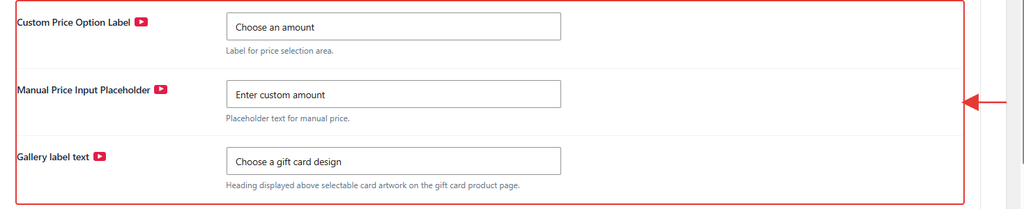
- Change Custom Price Option Label (default Choose an amount), Manual Price Input Placeholder (default Enter custom amount) and Gallery label text (default Choose a gift card design).
- Click Save Settings.
Note: To show or hide the product description above the form, use Show full product description on gift card pages in the same section.