

Design how the gift card pass will look, or link a template you already made in Epasscard. Use one design for all products or a different one per product.
How to Configure
Step 1: Choose Where to Design
- For all products: go to GiftRocket → Settings → Epasscard API and scroll to Digital Pass Template & Field Mapping.
- For one product: open the product, go to GiftRocket Settings → Digital Pass (Epasscard) and tick Use custom Digital Wallet Pass template for this product.
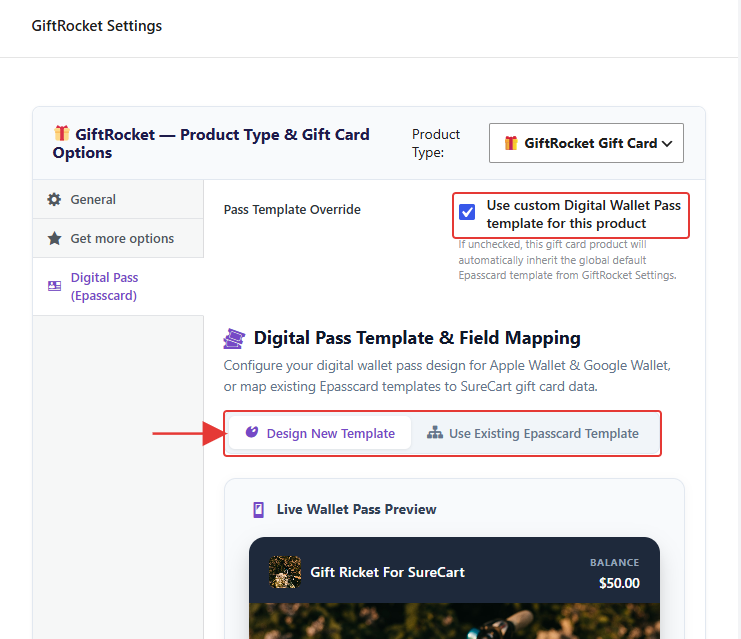
Step 2: Design a New Template
- Choose Design New Template.
- Fill in Template Name, Organization / Brand Name, Pass Type and Pass Description.
- Pick the Background Color, Text / Foreground Color and Label / Accent Color.
- Add a Card Logo Image and a Strip / Hero Banner Image.
- Choose a Barcode Symbology, such as QR Code (Universal).
- Check the Live Wallet Pass Preview, then click Create & Save Template in Epasscard.
Or: Use an Existing Template
- Choose Use Existing Epasscard Template and click Fetch / Refresh Templates.
- Select your template, then match each gift card field (recipient name, balance, code and so on) to a field in your template.
- Click Save Template Mapping & Settings.
Note: Your Epasscard plan limits how many templates you can create. Sending passes to recipients is planned for a future update (see 9.1).