

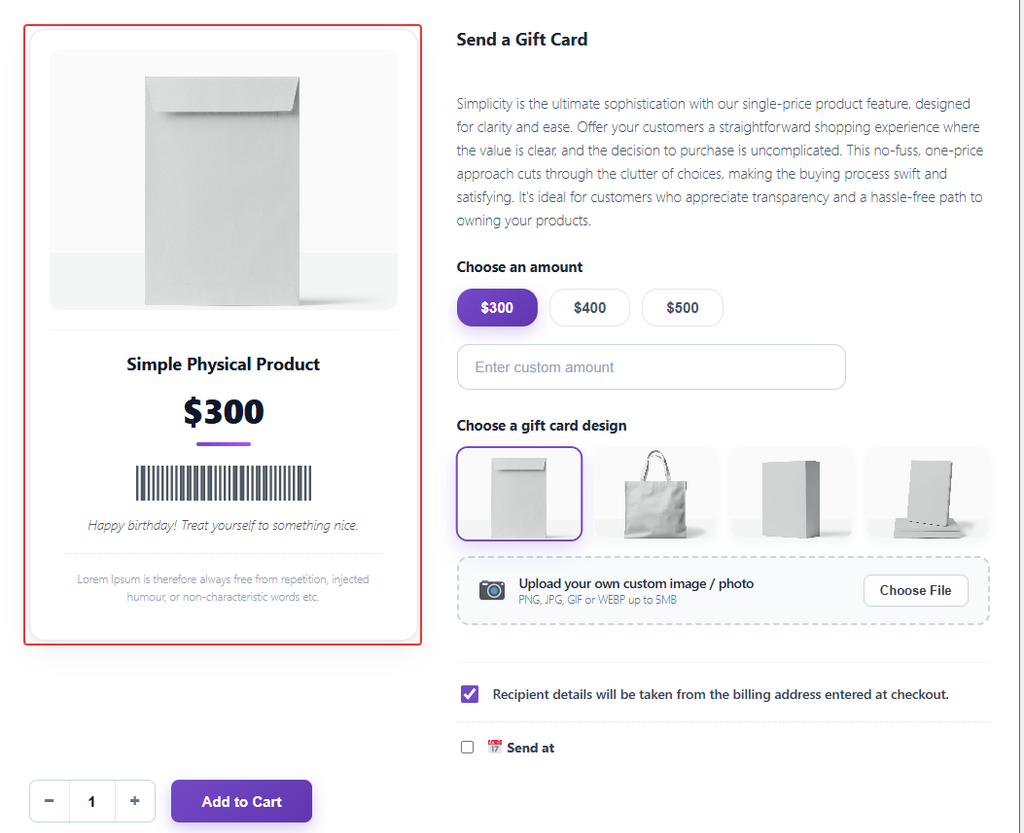
The card on the left of the product page updates as the customer chooses a design, amount and message, so they see exactly what they’re buying.
What the Preview Shows
- The chosen design or uploaded photo
- The product name and the selected amount
- The customer’s personal message
- Your card footer text (see 2.6)
How to Configure
Step 1: Choose What Appears
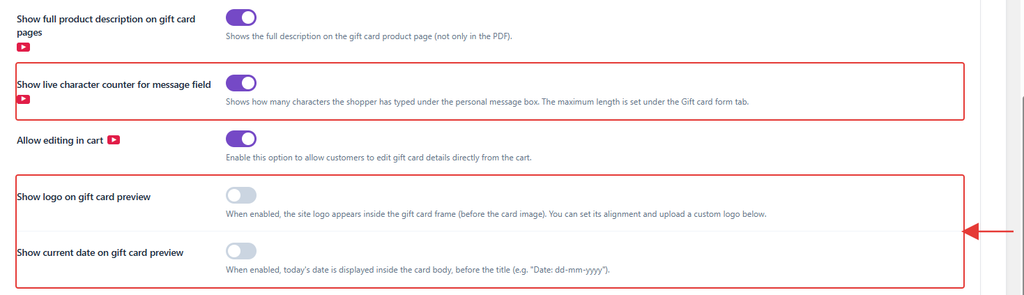
- Go to GiftRocket → Settings → General Settings → Essential options.
- Turn on Show logo on gift card preview to show your site logo on the card. GiftRocket uses the logo set in your theme, or your site name if there’s no logo.
- Turn on Show current date on gift card preview to show today’s date on the card.
- Turn on Show live character counter for message field to show how many characters the customer has typed.
- Click Save Settings.
Note: The preview can also show a sample barcode. It is decorative only. To hide it, open BarCode Settings on the same page and set Show sample scannable code on product page to No.