

See every gift card email that is waiting to be sent on a chosen date, and send any of them early.
How to Use Scheduled Deliveries
Step 1: Open the List
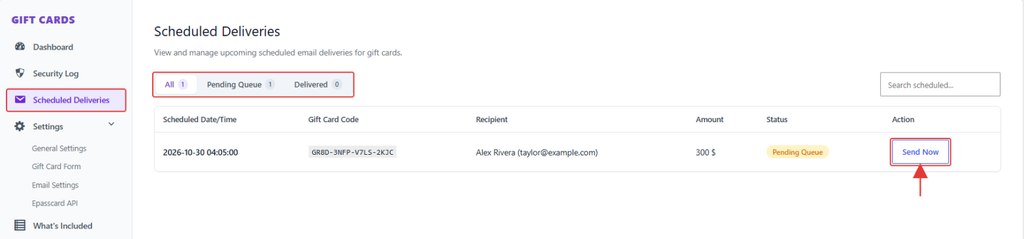
- Go to GiftRocket → Scheduled Deliveries.
Step 2: Filter and Act
- Use the All, Pending Queue and Delivered tabs, or search by code or recipient.
- Click Send Now to send a waiting email immediately.
- Click Resend Email on a delivered card to send it again.
Note: To change a delivery time, edit the card (see 5.3) and change Preferred date time. Times are shown in your site’s timezone, set under Settings → General.