

Change the subject, heading and message of the email recipients get with their gift card code.
How to Configure
Step 1: Open Email Settings
- Go to GiftRocket → Settings → Email Settings.
Step 2: Write Your Email
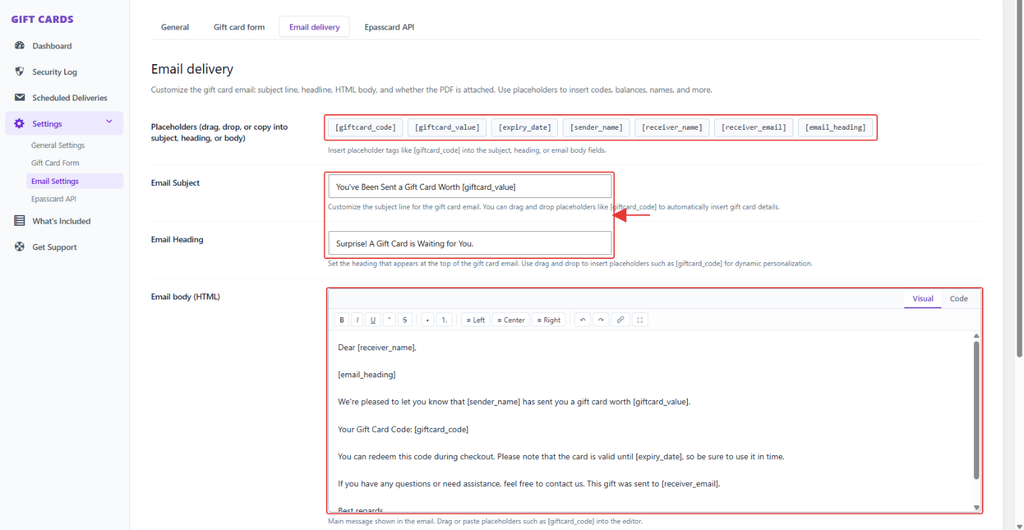
- Change the Email Subject. The default is You’ve Been Sent a Gift Card Worth [giftcard_value].
- Change the Email Heading.
- Edit the Email body (HTML) with the Visual editor, or switch to Code to edit the HTML.
- Click a placeholder, such as [giftcard_code], to copy it, or drag it into a field (see 6.2).
- Click Save Settings.
What the Recipient Receives
- Your heading and message
- The sender’s personal message
- The card design, amount and code
- A Redeem Gift Card Now button and a link to print the voucher
Note: The email is sent to the recipient only, from your site name and admin email address. If the buyer didn’t enter a recipient, it goes to the buyer’s email. For reliable delivery, use an SMTP plugin.