

Customers can add money to a gift card they already have instead of buying a new one. Anyone who has the code can top it up, so it also works for adding to a gift someone else received.
Step 1: Choose the Reload Product and Limits
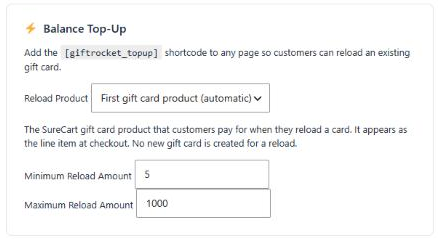
- Go to GiftRocket → Settings → Pro Settings and find Balance Top-Up.
- Under Reload Product, choose the gift card product customers pay for when they top up. Leave it on First gift card product (automatic) if you only have one.
- Set the Minimum Reload Amount and Maximum Reload Amount.
- Click Save Pro Settings.
Step 2: Add the Top-Up Page
- Go to Pages → Add New and add a title, for example “Reload Your Gift Card”.
- Add a Shortcode block containing
[giftrocket_topup]. - Publish the page and link to it from your menu or your gift card email.
How Customers Top Up a Card
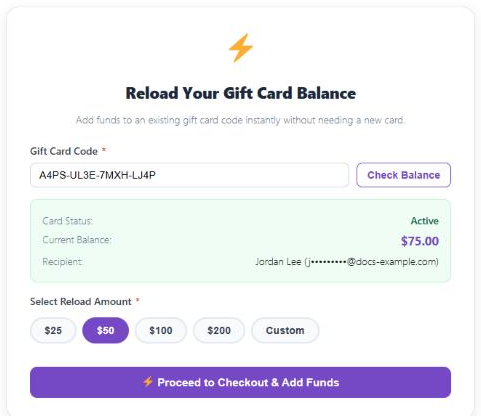
- The customer enters their code and clicks Check Balance. The card’s status, balance and recipient name appear. The email address is partly hidden.
- They pick an amount or click Custom and type one.
- They click Proceed to Checkout & Add Funds and pay in the normal SureCart checkout.
As soon as the payment goes through, the amount is added to the card, the recipient gets an email with the new balance, and the card’s history shows the top-up. A card that was fully used becomes active again.
Note: Expired and disabled cards can’t be topped up. The reload product appears as the line item at checkout, but no new gift card is created.