
Logged-in customers can see all their gift cards, their total balance, and use a card at checkout with one click.
Set Up the Page
- Go to Pages → Add New and add a title, for example “My Gift Cards”.
- Add a Shortcode block containing
[giftrocket_my_cards]. - Publish the page and add it to your account menu.
What Customers See
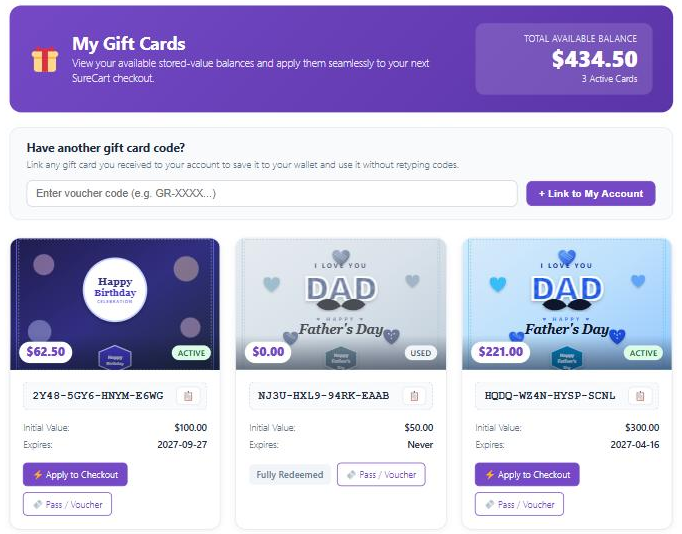
- Total Available Balance: the combined balance of their active cards.
- Each card with its design, balance, status, code (with a copy button), original value and expiry date.
- Apply to Checkout: opens checkout with the card already applied. Used-up cards show Fully Redeemed instead.
- Pass / Voucher: opens the printable voucher.
Which Cards Appear
The page lists cards sent to the customer’s account email address, plus any cards they link themselves. To link a card, they enter the code under Have another gift card code? and click + Link to My Account.
Note: A card someone buys for another person appears on the recipient’s page, not the buyer’s. Visitors who aren’t logged in see a Log In to My Account button instead.