

Customers can upload their own photo or artwork for the gift card, then crop and zoom it before adding it to the cart.
How to Configure
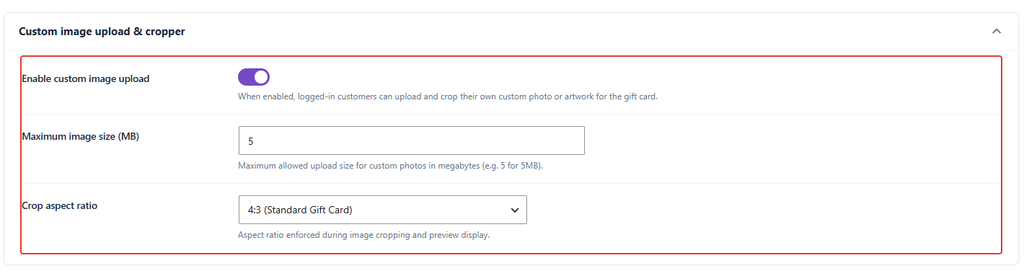
Step 1: Turn On Photo Uploads
- Go to GiftRocket → Settings → General Settings.
- Open Custom image upload & cropper.
- Turn on Enable custom image upload.
- Set Maximum image size (MB). The default is 5 MB.
- Choose a Crop aspect ratio: 4:3, 16:9, 3:2 or 1:1.
- Click Save Settings.
Step 2: How Customers Add a Photo
- On the product page, the customer clicks Choose File under Upload your own custom image / photo, or drags a photo onto the card.
- The Crop & Adjust Gift Card Artwork window opens. They drag to position the photo and use the zoom, Rotate and Reset controls.
- They click Apply Artwork. The card preview updates straight away.
- To change it later, they click Crop again or × Remove.
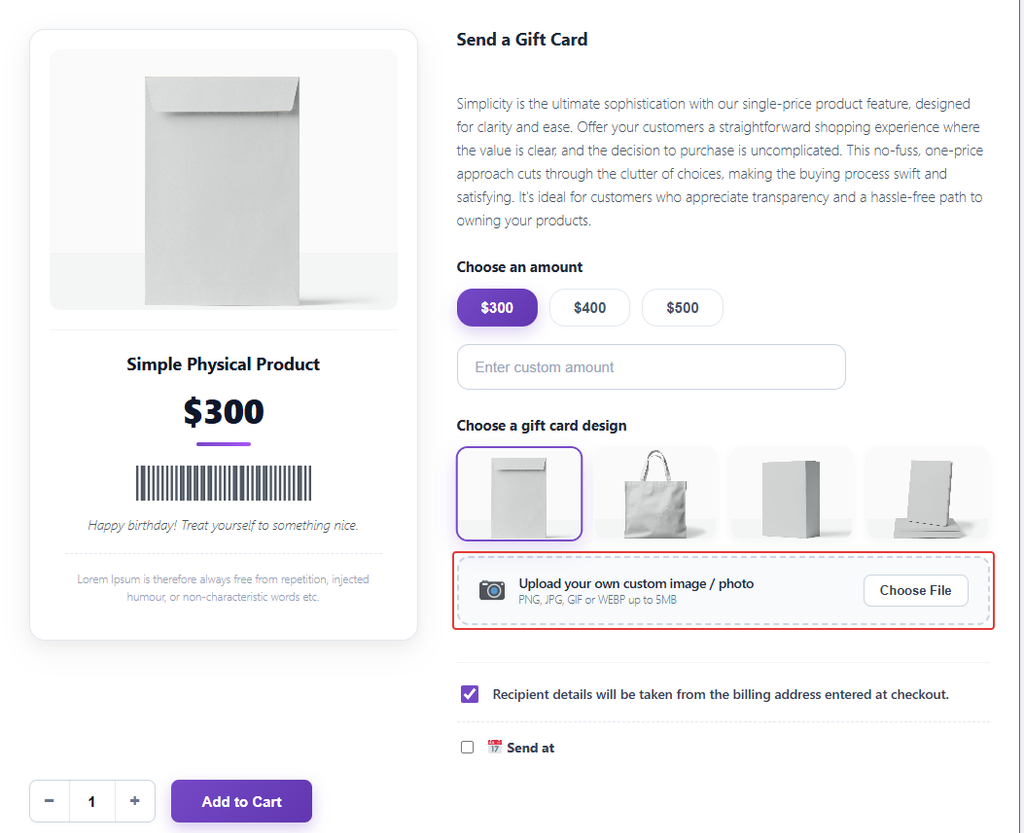
Note: Customers must be logged in to upload. Guests see a Log In to Upload link. Accepted files are JPG, PNG, GIF and WEBP. Each customer can upload up to 10 photos per hour. Photos are stored in wp-content/uploads/giftrocket-custom/, and photos that were never used on an order are deleted automatically after 7 days.
GiftRocket Pro: When GiftRocket Pro is active, photo upload is always on and the Enable custom image upload switch has no effect.